CFDs are complex instruments and come with a high risk of losing money rapidly due to leverage. You should consider whether you understand how CFDs work before investing.
Popular Questions
Popular Questions
Getting Started
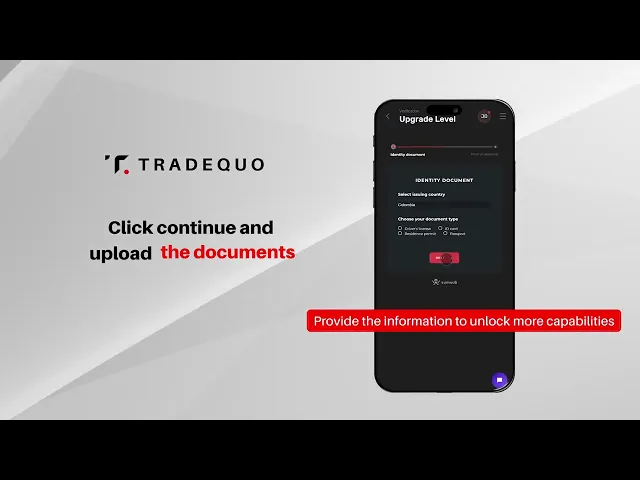
How do I verify?
Once logged in to my.finteva-ltd.com, you’ll see your Profile options in the upper right corner of the page (represented by a circle with your initials). Click on it, and from the dropdown menu, choose Verification.
Our system will guide you through the process of attaching all necessary documents. If all documents are attached according to instructions, your verification process can be completed in as little as 5 minutes!
If you need any assistance, contact [email protected]
Document Requirement
To proceed with the verification we will need a Proof of Identity(POI) document:
It is clear and readable
Includes ID number, full name, and date of birth
Full name to match the POR document and FINTEVA LTD account holder exactly
All four corners are visible
Any photographs and signatures are clearly visible
It is a valid government issued-document
The expiry date is not less than one month away from verification
Accepted Documents:
International Passport
National Identity Card/Document
Driver’s License
Permanent residence card
We will review your documents, and your account will be verified within 24 hours. You will receive a notification email from us, then you can start to deposit and trade.
If you need any assistance, contact [email protected].
How to register a TQ Member Area and trading account?
You can register a FINTEVA LTD account with one of these methods:
Via our FINTEVA LTD website at [www.finteva-ltd.com] (https://my.finteva-ltd.com/auth/sign-up)
Via referral link
Long Verification?
We will review your documents, and your account will be verified within 24 hours. You will receive a notification email from us, and then you can start depositing and trading.
Regional Restrictions for Account Registration
FINTEVA LTD follows international regulatory requirements, which means clients from certain regions are not allowed to open an account. The restricted countries include:
Ukraine
United States
Israel
Iran
Iraq
Canada
Russia
Afghanistan
Cyprus
Cuba
Eritrea
Liberia
Libya
Somalia
Syria
FINTEVA LTD also restricts access in any jurisdiction where the distribution or use of its services would be contrary to local laws or regulations.
How do I make my first deposit? NG
Once your account is verified, you can deposit funds into your trading account to begin trading. In the member area, go to the Deposit section and choose your preferred funding method available in your region.
The available funding options are credit or debit cards, international bank transfers, local bank transfers.
Platform
How do I add an expert advisor?
Choose File > Open Data Folder from the platform menu,
Navigate to MQL4/MQL5 > Experts and put your expert advisor into this folder.
Restart your platform, and you should be able to see the EA in the Navigator window.
Double-click on your EA or drag and drop it to add it to your preferred chart
How do I see the opening/closing price on my chart?
Buy orders are opened at the ASK price and closed at the BID price. Sell orders are opened at the BID price and closed at the ASK price. By default, you can only see the BID line on your chart. To display the ASK line, right-click on the chart and select Properties > Show > Show ASK price line.
Stop Out
When does the Stop Out apply?
Positions are closed on Stop Out when the Margin level drops below 20% (the position with the highest loss is closed regardless of its size, considering the largest loss at that moment). This is intended to protect both the Client and the Broker from entering a negative balance.
How to avoid Stop Out?
Reduce the size of opened positions to maintain a high level of Margin security.
You can also deposit funds into your account to increase the available Margin.
What do I do if the attached expert advisor is not working?
Firstly, check if trading is allowed by clicking on Tools -> Options -> Experts tab -> Allow real trading. Ensure that the EA button on the main toolbar is enabled. On the top right-hand corner of your chart, you should see a smiley face if the EA is activated correctly. If everything appears to be fine but the EA is still not trading, check your log files via the Experts tab in the Terminal window (it should display any errors that occur). Alternatively, you can contact our support team for further assistance.
What Trading Accounts Do You Offer? What Is The Difference Between Them?
FINTEVA LTD offers a variety of trading account types to suit different strategies, experience levels, and personal or professional requirements.
Each account comes with its own structure regarding commissions, leverage, spreads, and margin requirements.
Standard Account
Ideal for traders of all experience levels.
Commission-free trading.
Fast execution.
Great for trading small lots across various asset classes.
User-friendly and flexible.
Raw Account
Designed for experienced traders who value pricing precision.
Ultra-low, stable spreads.
Fixed per-lot commissions for better cost control.
Ideal for high-volume and professional traders.
Zero Spread Account
Perfect for those trading major pairs and key assets.
Consistent zero spreads on selected instruments.
Helps improve trade precision and cost-efficiency.
Great for scalpers and short-term strategies.
Note: Expert Advisors not available.
Swap-Free (Islamic) Account
Tailored for traders following Islamic finance principles.
No interest charged on overnight positions.
Compliant with Shariah law.
Supports ethical and interest-free trading.
LIMITLESS ∞ Account
Built for advanced traders seeking maximum trading power.
Operate with minimal margin.
Trade larger volumes.
Hold multiple open positions simultaneously.
Ideal for aggressive and diversified strategies.
For more details on each account type, please refer to our Account Types Section.
Trading
Terms and Conditions for Swap Free Accounts
Extended swap-free account (EXT)
Swap-free accounts are available at two levels 1st to non-Islamic countries: extended and 2nd to Islamic- swap free. The difference is the number of trading instruments with zero swap and trading days. Extended swap-free is offered by request, with trading activity determining whether an account becomes standard or remains extended. To maintain extended swap-free status, you need to trade mostly within the day and hold a low number of overnight positions.
Specific instruments are considered swap-free under extended levels (see below); for all other trading instruments swap is applied. The extended swap free instruments are for the time agreed with the Client and the Broker
Extended swap-free will have no swap applied for orders open overnight for these instrument groups:
EURUSD
GBPUSD
NZDUSD
XAGUSD
XAUUSD
USOUSD
UKOUSD
DJIUSD(DJI30)
SPXUSD(SP500)
NASUSD
DAXEUR (D40EUR)
BTCUSDT
ETHUSDT
The swap-free level is determined by trading activity. A trader can qualify to move from swap-free to extended swap-free, or the other way around, upon review of their trading activity.
Key information
Here are a few key points to keep in mind when using our extended swap-free program:
Trading behavior is analyzed using an algorithm to ensure swap-free is not abused.
To maintain extended swap-free, it is recommended to trade mostly during the day and minimize overnight orders.
Swap-free status abuse
The company reserves to the right to the following actions in the event of swap-free status abuse:
Cancel the swap-free status on all trading accounts.
Once swap-free status is discontinued, swap charges will be applicable for open orders and orders opened in the future.
All past positions will be charged with a swap fee based on the swap fee rates from the day of swap free termination.
We reserve the right to remove the swap free account at any time.
Muslim swap-free
Swap-free accounts are available at two levels 1st to non-Islamic countries: extended and 2nd to Islamic- swap free. The difference is the number of trading instruments with zero swap and trading days. Islamic swap-free is offered by request, with trading activity determining whether an account becomes standard or remains Islamic. To maintain Islamic swap-free status, you need to trade mostly within the day and hold a low number of overnight positions.
Islamic swap free
All instruments are considered swap-free under Islamic swap free levels with no days limit.
Swap-free status abuse
The company reserves to the right to the following actions in the event of swap-free status abuse:
Cancel the swap-free status on all trading accounts.
Once swap-free status is discontinued, swap charges will be applicable for open orders and orders opened in the future.
All past positions will be charged with swap fee based on the swap fee rates from the day of swap free account termination.
We reserve the right to remove swap free account at any time.
What Additional Trading Features and Perks are Available on FINTEVA LTD?
In FINTEVA LTD, we have several trading features and perks to enhance your overall trading experience. Below is a quick guide to what each perk means and how it can benefit you.
Scalping
Scalping is a fast-paced trading strategy that involves opening and closing multiple positions within a short period. This trading function is ideal for traders who prefer quick trades based on small price movements.Hedging
Hedging is trading function that allows you to open buy and sell positions on the same instrument at the same time. Hedging helps reduce risk by offsetting potential losses.Trailing Stop
A trailing stop is a trading function that automatically moves your stop-loss as the market price moves in your favor.
By enabling the trailing stop function, the platform adjusts your stop-loss for you, so you don’t need to update it manually. You can set the desired distance (in pips or points) from the current price. When the price starts to move against your position, the trailing stop triggers.
This function is highly beneficial because it helps you lock in profits while still allowing your trade room to grow if the favorable price movement continues.24-Hour Trading
Depending on the instrument, clients can trade 24 hours a day during market-open days. With this it will be more flexibility to trade whenever it suits your schedule. In order to get the up-to-date open and close times for any specific symbol, please refer to the Specification section in the trading platform.Educational Resources
We provide trading education materials to help you improve your knowledge and skills.
You can enhance your investment knowledge by visiting our Investing 101 page to learn at your own pace and stay informed about market trends.Industry Awards
We may reward bonuses to clients for participating in trading activities. These bonuses will be added to your live trading account.Document Mailing Service
We provide a service to send important account documents (such as trading reports, daily reports, and monthly statements) directly to your email. This keeps you up-to-date and ensures you always have quick and convenient access to your essential trading records.
If you need help enabling or locating any of these options, feel free to contact our support team at [email protected].
What execution type does FINTEVA LTD use?
At FINTEVA LTD, we offer our clients Instant Execution type with an average execution speed of 150 to 400 milliseconds, helping ensure that trades open at the intended price.
What is a Swap-Free Account?
What is a Swap-Free Account?
A Swap-Free Account, also known as an Islamic Account, is designed to accommodate traders who adhere to Islamic principles that prohibit the earning or paying of interest. This type of account allows you to trade without incurring any swap charges on positions held overnight, making it compliant with Shariah law.
Who is eligible for a Swap-Free Account?
Swap-Free Accounts are available exclusively to traders residing in Islamic countries and adhering to Islamic financial principles. Official proof of residency and compliance with Shariah law might be required during the account opening process.
How does a Swap-Free Account differ from a Standard Account?
A Swap-Free Account offers the same trading conditions as a Standard Account, with the primary distinction being the absence of swap charges. This means you can hold positions overnight without incurring any interest-related costs. However, please note that the spread on a Swap-Free Account may be slightly higher to cover the potential cost of removing spreads in situations where liquidity providers (LPs) cannot remove spreads entirely.
Why is the spread slightly higher on a Swap-Free Account?
The spread on a Swap-Free Account might be slightly higher compared to a Standard Account to account for situations where LPs are unable to remove spreads completely. This ensures that the brokerage can cover the cost of providing a swap-free option while preventing the misuse of the account by certain trading strategies.
Can I use any trading strategy with a Swap-Free Account?
Yes, you can use a wide range of trading strategies with a Swap-Free Account, just like you would with a Standard Account. However, please keep in mind that the slightly higher spread is in place to avoid abuse of the account, so make sure your trading strategies align with the account’s intended purpose.
How do I apply for a Swap-Free Account?
To apply for a Swap-Free Account, you’ll need to follow the regular account opening process provided by your broker. During the application, you might be required to provide official proof of residency in an Islamic country and confirm your adherence to Islamic financial principles.
Are there any additional fees associated with a Swap-Free Account?
In most cases, there are no additional fees for having a Swap-Free Account. However, as mentioned earlier, the slightly higher spread is the primary adjustment to the trading conditions in order to cover potential costs related to the removal of spreads by LPs.
Can I switch between a Swap-Free Account and a Standard Account?
Yes, some brokers might allow you to switch between a Swap-Free Account and a Standard Account based on your trading preferences. Be sure to check with your broker about their policies regarding switching between account types.
Is the Swap-Free Account available for all trading instruments?
In many cases, Swap-Free Accounts are available for a wide range of trading instruments, including forex, commodities, indices, and more.
What is a Zero Spread Account?
What is the FINTEVA LTD Zero Spread Account?
The FINTEVA LTD Zero Spread Account is a specialized trading account type that offers fixed zero spreads on a selection of high-impact trading instruments. This account is designed to provide traders with the advantage of trading major currency pairs and top assets without worrying about spreads.
Which instruments are eligible for zero spreads?
The following instruments are eligible for zero spreads on the Zero Spread Account: AUDUSD, EURUSD, GBPUSD, NZDUSD, XAGUSD, XAUUSD, USOUSD, UKOUSD, DJIUSD (DJI30), SPXUSD (SP500), NDXUSD (NASUSD), DAXEUR (D40EUR).
How often do the zero spread conditions apply?
Approximately 90% to 97% of the London and US trading sessions, excluding low liquidity periods and market events, the zero spread conditions are in effect for the specified instruments.
How does the Zero Spread Account handle news events and market volatility?
The Zero Spread Account is designed to provide stability and transparency in trading, even during news events and periods of high market volatility. While the zero spread conditions generally apply to the specified instruments, it’s important to note that there might be instances where spreads may not remain at zero during particularly turbulent market conditions or significant news events. However, the Zero Spread Account aims to minimize spreads during these times, ensuring that traders can continue to trade with increased certainty and efficiency.
What are the benefits of trading with zero spreads?
Trading with zero spreads provides several benefits, including:
Enhanced precision in executing trades.
Greater transparency in trading costs.
Cost-effective trading with minimized spreads.
Improved potential for profit maximization.
Can I use the Zero Spread Account for my specific trading strategy?
Absolutely. The Zero Spread Account is tailored to accommodate various trading strategies. With the assurance of zero spreads on specific instruments, you can optimize your strategy with confidence.
Are there any limitations to the Zero Spread Account?
While the Zero Spread Account offers competitive advantages, it’s important to note that zero spreads apply only to the specified instruments and during the designated trading days with zero spread conditions.
How do I open a Zero Spread Account with FINTEVA LTD?
Opening a Zero Spread Account with FINTEVA LTD is easy. Simply follow our user-friendly account opening process, select the Zero Spread Account type, and start enjoying the benefits of trading with zero spreads.
Can I switch between different account types?
Yes, FINTEVA LTD offers flexibility. You can switch between different account types according to your trading preferences.
How can I stay informed about the zero spread conditions and trading days?
FINTEVA LTD provides regular updates on trading conditions, including the days when zero spread conditions are in effect. You can stay informed through our trading platform, newsletters, and official communications.
Experience the future of trading with the FINTEVA LTD Zero Spread Account. Take advantage of fixed zero spreads on select instruments and trade with confidence, precision, and transparency. For more information, feel free to contact our customer support team or visit our website.
What is Margin Call Level?
At FINTEVA LTD, please note that the Margin Call Level is set at 100%. A Margin Call is a warning that your trading account does not have enough free margin to support your open trades. At that moment, you should either deposit additional funds to increase your available margin or close some open positions to reduce margin usage. If no action is taken and your Equity continues to fall, a Stop Out may occur, where the system automatically closes positions, typically starting with those showing the largest losses, to protect your account from going negative.
*If an account is low on equity - for example, when holding a large number of hedged positions - the platform may not allow you to close your positions due to insufficient funds and high leverage usage. In such cases, an additional deposit will be required. This is a built-in protection mechanism that prevents client accounts from falling into a negative balance, which is why you may see the message "Not Enough Money" when attempting to close an existing position.
What Is Negative Balance Protection (NBP)?
At FINTEVA LTD, we believe in protecting your trading journey.
Negative Balance Protection (NBP) ensures that if your account goes into negative due to high volatility or fast market movements, your balance will be reset to zero, at no cost to you.
This allows you to move forward and focus on your next trading opportunity without being burdened by a negative balance.
How Does Negative Balance Protection Work?
If your trading account falls into a negative balance due to market volatility or rapid price movements, our system will:
Automatically restore your balance to $0.
Remove the burden of having to repay the negative amount.
Enable you to deposit new funds for fresh trading opportunities.
Negative Balance Protection is not about covering losses, it’s about giving you the freedom to bounce back faster.
Important: NBP and Active Bonuses
If you have a bonus on your account and your equity drops below $10:
Your balance will be reset to $0.
Your bonus will be removed.
Negative Balance Protection reflects our commitment to fairness and trader support, giving you the freedom to recover and keep trading with confidence.
What Is the Hedging Margin Policy at FINTEVA LTD?
At FINTEVA LTD, traders can hedge positions across all account types.
Hedging allows you to open both buy (long) and sell (short) positions on the same instrument, a powerful tool for managing risk and enhancing trading strategies.
We maintain a transparent approach to hedging margin to support informed and responsible trading decisions.
Hedging Margin for Standard, Raw, Zero, and Swap-Free Accounts
For all our account types, hedging is supported with a 0% margin requirement. This means that if a trader decides to open both a buy and a sell position of the same size (e.g., 1 lot each), the margin used will be 0.
We recognize the value of hedging as a risk management tool and strive to provide favorable conditions for our traders to employ this strategy effectively.
Hedging Margin for Limitless Account
In the case of the Limitless account, which is designed to offer unparalleled leverage for specific instruments, there is a distinct approach to hedging margin.
With Limitless, when a trader engages in hedging by opening both buy and sell positions for the same instrument, the margin calculation differs. In this scenario, the margin used will be calculated based on the full leverage available for the position that uses the highest leverage. This means that if the trader holds a hedged position, the margin used will reflect 100% of the leverage, considering the position with the highest leverage.
Why Is This Important?
0% margin for hedging in most account types lets you manage trades efficiently without added cost.
In Limitless accounts, margin is still required for hedging to reflect the risks of extreme leverage.
This structure ensures a fair and secure trading environment and prevents misuse of hedging to exploit margin rules.
Abuse Prevention and Responsible Trading
FINTEVA LTD monitors hedging activity to protect market integrity.
In case of hedging abuse (e.g., using the system to avoid real margin or risk), we may:
Cancel swap-free or hedging privileges.
Apply margin retroactively.
Reclassify the account or restrict activity.
Hedging can be a powerful risk management and trading strategy. However, like any tool, it has the potential for misuse that could negatively impact the integrity of the market and traders’ experiences.
Our hedging margin policies are established with the clear intention of preventing abusive practices that could harm traders and the market ecosystem. By implementing measures that balance the flexibility to hedge with responsible risk management, we aim to foster an environment where all traders can execute their strategies with confidence.
We encourage traders to embrace these policies as part of their commitment to trading responsibly. By doing so, you contribute to a trading community built on trust, fairness, and integrity, allowing everyone to harness the potential of the markets in a secure and sustainable manner.
*If an account is low on equity - for example, when holding a large number of hedged positions - the platform may not allow you to close your positions due to insufficient funds and high leverage usage. In such cases, an additional deposit will be required. This is a built-in protection mechanism that prevents client accounts from falling into a negative balance, which is why you may see the message "Not Enough Money" when attempting to close an existing position.
What is the Maximum Number of Orders?
The maximum number of orders refers to the highest number of trades you are allowed to have at the same time in your trading account.
These can include:
Open positions
Pending orders (buy limit, sell stop, etc.)
In FINTEVA LTD, all of our product types (Standard, Raw, Zero, Limitless ∞) offer a maximum number of orders depends on instruments.
Note: For the latest information, kindly refer to the Specifications provided in the trading platform.
What Is The Maximum Position Size in Lots?
Maximum Position Size (in Lots) is the largest trade size you’re allowed to open in a single order on a specific instrument.
In FINTEVA LTD, all our product types (Standard, Raw, Zero, Limitless ∞) offer a maximum position size of up to 1,000,000 lots, depending on the instrument. Each symbol has its own maximum volume based on contract specifications.
For example:
SHBUSDT: maximum volume 1,000,000 lots
XAUUSD: maximum volume 20 lots
Note: For the latest information, kindly refer to the Specifications provided in the trading platform.
What is the Minimum Position Size in Lots?
The minimum position size is the smallest trade volume you’re allowed to open in the market. It’s expressed in lots, which are standardized units of trade volume.
In FINTEVA LTD, all of our products (Standard, Raw, Zero, Limitless ∞) offers a minimum position size of 0.01 lots, ensuring every client has full flexibility right from the start.
What Types of Trading Accounts Does FINTEVA LTD Offer?
FINTEVA LTD offers a variety of trading account types to suit different strategies, experience levels, and personal or professional requirements.
Each account comes with its own structure regarding commissions, leverage, spreads, and margin requirements.
Standard Account
Ideal for traders of all experience levels.
Commission-free trading.
Fast execution.
Great for trading small lots across various asset classes.
User-friendly and flexible.
Raw Account
Designed for experienced traders who value pricing precision.
Ultra-low, stable spreads.
Fixed per-lot commissions for better cost control.
Ideal for high-volume and professional traders.
Zero Spread Account
Perfect for those trading major pairs and key assets.
Consistent zero spreads on selected instruments.
Helps improve trade precision and cost-efficiency.
Great for scalpers and short-term strategies.
Note: Expert Advisors not available.
Swap-Free (Islamic) Account
Tailored for traders following Islamic finance principles.
No interest charged on overnight positions.
Compliant with Shariah law.
Supports ethical and interest-free trading.
LIMITLESS ∞ Account
Built for advanced traders seeking maximum trading power.
Operate with minimal margin.
Trade larger volumes.
Hold multiple open positions simultaneously.
Ideal for aggressive and diversified strategies.
For more details on each account type, please refer to our Account Types Section.
What Is the Trading Calculator in Trading View? NG
The Trading Calculator is a tool that helps you plan and manage trades more effectively by calculating:
Position size
Potential profit or loss
Risk-reward ratio
Margin requirements
It’s designed to support smarter decision-making by letting you input details like your balance, entry price, stop-loss, and take-profit levels.
Key Features of the Trading Calculator
Profit & Loss (PnL) Calculator
Calculates potential profit & loss based on entry price, exit price, trading volume, leverage, and balance.
Supports both long (Margin Buy) and short (Margin Sell) positions.
Target Price Estimation
Allows you to input your desired ROE % (Return on Equity) and calculates the required exit price.
Helps traders set realistic profit targets based on their leverage and position size.
Take Profit / Stop Loss Calculation
Users can define possible take profit & stop loss levels.
Automatically calculates the corresponding margin.
Provides margin requirements for different lot sizes.
Swap Calculation
Users can enter entry and exit dates to estimate possible swap commissions (overnight fees).
Multi-Currency & Account Support
Users can select their account type and base currency (e.g., USD, EUR).
Compatible with multiple currency pairs, including major, minor.
How to Use the Trading Calculator in Trading View
Go to Trading View
Log in using your trading account number and password.
Locate the Calculator Tool in the top-left corner, next to the Dark Mode toggle.
Enter your trade details and start calculating setups instantly.
What Trading Instruments Are Available? NG
The tradable instruments on FINTEVA LTD include:
Forex
Commodities
Metals
Indices
Stocks / Shares
Synthetic Indices
Soft Commodities
NDFs (Non-Deliverable Forwards)
Mini Index instruments
For detailed information about each instrument, including its symbols, spreads, and other details, please visit our Specifications page, based on product type (Standard, Raw, Zero, Limitless ∞).
General Questions
2FA Code Did Not Arrive
First, check all your mailboxes, including folders: SPAM, offers, social, etc.
If the email with the code comes with a significant delay, there might be a need to change your Profile’s email. Codes work 100% on stronger domains like @gmail.com, @protonmail.com, etc.
Want to request an email change?
Send a message to [email protected] using your current email assigned to the TQ Profile. Such requests require additional verification to ensure your account’s safety, and we will guide you through this process.
How Can I Contact Support?
FINTEVA LTD provides multiple support channels to ensure clients receive timely and efficient assistance. You can reach our team through:
Email Support - [email protected]
WhatsApp - Chat with us
Messenger - Chat with us
Live Chat
Ai Assistant
How to access Live Chat / AI Agent:Visit the FINTEVA LTD website.
Look for the red chat icon located at the bottom-right corner of the page.
Click the icon to open the chat window.
You will first be connected to our AI Assistant, which will help address common questions.
If your enquiry requires further assistance, the system will automatically route you to a live support agent.
These support channels are available to help with platform navigation, technical issues, and general account-related enquiries.
Issues On The Site And Error Page – First Aid
When encountering issues on the site, we recommend deleting all the cookies and cache from your browser history. Additionally, try logging in from an alternative browser (e.g., Explorer, Firefox, Chrome).
If this fails, please contact us and attach a screenshot illustrating the issue (full browser window screenshot).
Social Trading
Can I Copy Multiple Traders At Once?
Yes, you can, you can copy multiple traders at once. This feature allows you to diversify your investment portfolio by replicating the trades of different successful traders with varying strategies. By copying multiple traders, you can spread your risk and potentially benefit from a broader range of trading styles and expertise. This approach can help you create a more balanced and diversified trading portfolio.
Can the Leader change their performance fee in Social Trading?
By default, our performance fee in Social Trading is set as 15% per profitable trade .If you wish to adjust your current performance fee, please submit a request to [email protected]. Once we receive your request, our Support Team will review it and arrange the necessary action.
How Do I Find A Leader If He Is Not On The Leader Board?
The Leaderboard showcases the top 800 leaders based on various metrics. For a more streamlined experience, only the top leaders are displayed. If the leader you’re searching for is not on the Leaderboard, follow these steps:
Obtain the Leader Profile Name: Get the Leader Name from your chosen Leader.
Log in to Your Social Trading: Enter your trading account’s ID as the username and your password.
Navigate to the “Auto Copy” Button:
If you haven’t followed any Leaders, click the “Social Trading” logo on the left-hand side and locate the “Start Auto-Copy” button, highlighted in Red or Green, and click it.
If you have followed multiple Leaders, you will see a “My Portfolio” column besides the “My copy stats” column. In this case, click the column and look for the red or green button on the right-hand side labeled “Started.”
Configure and Confirm Auto-Copy Settings: Select your trading account under “Trading Account” that you intend to use for copy trading. In the “Provider” field, enter the Leader Name obtained in step 1 (e.g., Leader 0000 000). Keep the third option set to “Copy Trade”. Check the box for “I accept the Terms of Service”. Click “Create”.
Configure Subscription Profile Filters: It is recommended to set up your Subscription Profile Filters to ensure effective risk management. For detailed guidance on how to establish risk management strategies, kindly refer to the following article on How to set Risk Management in Social Trading.
Note: To view the leader’s profile with detailed statistics, you can use the direct share link provided by the Leader.
How Do I Find Successful Traders To Follow?
To find successful traders to follow in social trading platforms, you can consider the following strategies:
Performance Metrics: Look for traders with a consistent track record of profitable trades. Check their historical performance, risk management strategies, and overall profitability.
Risk Management: Evaluate how traders manage risk in their trades. Successful traders often have a good risk-reward ratio and employ proper risk management techniques.
Trading Style: Understand the trading style of the traders you are considering to follow. Choose traders whose strategies align with your risk tolerance and investment goals.
Diversification: Consider following multiple successful traders with different trading styles to diversify your portfolio and reduce risk.
Track Record: Look for traders with a proven track record of success over a significant period. Avoid traders with inconsistent performance or high-risk strategies.
In order to check the Leader’s statistics, Log in to Social Trading website for FINTEVA LTD with your details. Go to the LeaderBoard tab . You can filter these leaders by category and click on Profile to see the details. Explore hundreds of trading strategies, review their performance, and choose the most suitable one.
How Long Does It Take To Copy A Trade?
When an Auto-Copier chooses a Leader, you need to click on Auto Copy to subscribe to the Leader.
Once subscribed, you need to click on Actions, then click Activate then Copy.
Once you click on Copy, all the open order positions will now be copied automatically, provided that the parameters set by the Auto-Copier has been met and if not, the position will be skipped.
How Much Control Do I Have Over Copied Trades?
When engaging in social or copy trading, managing risk is crucial to protect your investments.
As an Auto-Copier, you can set your specific parameters before a position will be copied by the system. You can set this up via the Subscription Profile. You can find the details on how to set this on the FAQ Subscription Profile.
How Much Is The Fee For Copying The Trades Of A Leader?
There is a Copy Fee involved as this is the Commission fees that the broker will charge per Profitable trade of the leader.
15% of the profitable trades will be charged to the Auto Copier.
Example: You copied a trader and in turn you earned 100 USD profit. You will be charged 15 USD.
You now have 85 USD profit that you can withdraw.
How Much Money Is Needed In Order To Start Social Trading?
Leader:
In order to be classified as a Leader, you have to deposit at least 100 USD into your trading account.
Auto-Copiers:
No minimum balance is needed. However, there may be a minimum transaction amount depending on the payment system.
You might also need to consider you have enough Margin for each copy trading positions, in order to ensure you will not get Stop Out.
How Much Profit (Performance Fee) Does a Leader Earn in Copy Trading?
By default, our Copy Trading system applies a 15% Performance Fee on each profitable trade copied by the Auto-Copiers. This fee is entirely allocated to the Leader. This means that the Leader earns 15% of the realised profit from every profitable trade executed by their Auto-Copiers. Therefore, Auto-Copiers are able to withdraw only 85% of their realised profits from copying the Leader’s trades.
How To Become A Leader?
Follow these 4 steps to get started as a Leader:
Step 1: Account Opening, Trading Account Creation and First Deposit
Create an account in preferable Broker. After that, create a Live Meta Trader 4/5 account and then take note of the Trading Account number and Password sent to your email. . You need to deposit at least 100 USD to have a leader Profile, along with other criteria set by your broker.
Step 2: My Copy Stats Tab
Set up your Leader’s Profile and Sharing Settings by Clicking the My Copy Stats Tab.
Step 3: Trading Strategies
Establish your Trading Strategies and proceed to trade. The results of your trading will be displayed and you will be ranked in the Leader Board depending on your performance real-time.
Step 4: Earn your Copy Fees
As a Leader, your account will be attached to a Live Meta Trader 4/5 account that you are currently trading. Copy fees will be credited upon Realized Profit per trade. So when you or your followers close the position and gained Profits, you will receive the Copy Fees on your trading account.
That’s all! We hope you find this information helpful.
How To Become An Auto-copier?
Follow these 5 simple steps to get started being an Auto-Copier.
Step 1: Account Opening, Trading Account Creation and First Deposit
Create an account in preferable Broker. After that, create a Live Meta Trader 4/5 account and then take note of the Trading Account number and Password sent to your email. Proceed to deposit the funds you wish to use for copying the Leaders.
Step 2: Choose a Leader
Log in to Social Trading website for FINTEVA LTD or QuoMarkets. with your details. Go to the Leader Board. Explore hundreds of trading strategies, review their performance, and choose the most suitable one.
Step 3: Auto-Copy Button
Once you have chosen a Leader, you can click on Auto Copy Button. It will ask for the trading account you wish to use as an Auto Copier and the Leader name. Leave the Copy Fees to Copy Trade.
Step 4: Become an Auto-Copier
You will now be redirected to the Subscription Profile, where you have to specify your preferences when copying trades. This is for Risk Management purposes.
Step 5: Activate Button
Go to Actions and click Activate. You can choose to Copy all the existing positions at the market price or just Ignore. Start following and reap the same benefits as your favorite strategy! Follow multiple traders simultaneously!
That’s all! We hope you find this information helpful.
How to Change the Nickname of Your Leader Account in Social Trading?
The nickname shown on the Dashboard for Leader is set as a default by the FINTEVA LTD system.
However, if you wish to change the nickname, you can send a request to the [email protected] email for the necessary action.
How To Register In Social Trading?
You can register an account with one of these methods:
Via our FINTEVA LTD website at www.finteva-ltd.com or via the QuoMarkets website at www.quomarkets.com.
Via referral link of your Business Development Manager
From QuoMarkets: https://quomarkets.com/support/how-to-register-a-tq-member-area-and-trading-account/
From FINTEVA LTD: https://finteva-ltd.com/fsu/fsu/support/how-to-register-a-tq-member-area-and-trading-account/
How to use Autoscale in Social Trading?
What is the Autoscale feature?
The Autoscale feature in our Social Trading platform allows Autocopiers to automatically scale their trade sizes based on the Balance and Equity of the Leader they are copying.
How does Autoscale work?
Autoscale ensures that when a Leader opens a trade, the Autocopier will open a corresponding trade size that is proportionate to their own Balance or Equity relative to the Leader’s account. For example, if a Leader with a Balance of $10,000 opens a trade of 1 lot, an Autocopier with a Balance/Equity of $2,000 and a multiplier of 1.5 will trade 0.3 lots
Example:
Your Leader with a Balance of $10,000 opens a trade of 1 lot. If you follows with a Balance/Equity of $2,000 and a Ratio Multiplier set to 1.5, yours trade size would be calculated as follows:
Leader’s Trade Size: 1 lot
Autocopier’s Balance/Equity: $2,000
Multiplier: 1.5
Autocopier’s Trade Size = 1 lot x ($2,000 / $10,000) x 1.5
Autocopier’s Trade Size = 1 lot x (0.2) x 1.5
Autocopier’s Trade Size = 0.3 lots
Therefore, you would open a trade of 0.3 lots, aligning with your account’s Balance/Equity proportion relative to your Leader’s account.
Can I customize the Ratio Multiplier?
Yes, you can customize the Ratio Multiplier based on your trading strategy. A Ratio Multiplier of 1 means trades are copied at the same proportion as the Leader. Adjusting the multiplier allows you to increase or decrease the trade size proportionally.
What happens if my Balance changes after setting up Autoscale?
Autoscale adjusts the open volume from copied signal based on your current Balance and Equity for each trade. If your Balance/Equity changes, the trade sizes will be recalculated accordingly.
Can I use Autoscale with multiple Leaders?
Yes, you can use Autoscale with multiple Leaders. Each Leader’s trades will be scaled based on your account’s Balance and Equity relative to that Leader’s account.
How does Autoscale handle multiple leaders on the same trading account?
Autoscale allows you to receive and execute trade signals from multiple leaders simultaneously on the same trading account. The trade volumes are automatically scaled proportionally based on your account Balance or Equity, ensuring effective risk management across all copied trades.
How is the trade volume calculated when using Autoscale with multiple leaders?
Autoscale calculates the trade volume for each leader based on your account’s Balance or Equity and a predefined multiplier. Here’s an example to illustrate:
Example Scenario:
Autoscale Setting: Equity-based, Multiplier: 0.5
Your Balance: $1000
Following Two Leaders:
Leader 1 with a Balance of $5000
Leader 2 with a Balance of $10,000
What happens when Leader 1 opens a trade?
When Leader 1 opens a trade, Autoscale calculates the trade volume for your account as follows:
Trade Volume = 0.5 x (1000/5000) = 0.1
You will open a trade with 0.1 lot.
What if my equity changes after the first trade?
If your equity changes, Autoscale will adjust the trade volume accordingly. For instance, if your equity increases to $1200 after the first trade:
Initial Equity: $1000
Initial Trade Volume: 1 lot (based on $1000 equity)
New Equity: $1200 (after the first trade)
Adjusted Trade Volume: 1.2 lots (based on $1200 equity)
With Autoscale, the trade volume will increase proportionally to the change in equity, ensuring that your trades are scaled according to your current equity. This helps in maintaining consistent risk management and maximizing the potential gains based on the available equity.
What happens when Leader 2 opens a trade after my equity increases?
When Leader 2 opens a trade, Autoscale recalculates the trade volume based on your updated equity:
For example, at that time the Equity goes up to $1200
Trade Volume = 0.5 x (1200/10000) = 0.06
You will open a trade with 0.06 lot.
Why is proportional scaling important?
Proportional scaling ensures that your trades are appropriately sized according to your account Equity/Balance and the leaders’ trades, maintaining balanced risk management across all copied trades. This helps in managing risk effectively and maintaining consistent trading strategies.
Is there a minimum account Balance required to use Autoscale?
There is no minimum Balance required to use Autoscale. However, your account Balance should be sufficient to copy trades at the scaled-down volume.
Can I disable Autoscale after enabling it?
Yes, you can disable Autoscale at any time by changing the Volume Scaling setting in your Subscription Strategy.
What are the benefits of using Autoscale?
Proportional Trade Copying: Trades are copied in proportion to the Autocopier’s account size, ensuring alignment with the Leader’s trading activities.
Enhanced Risk Management: By scaling trades based on account size, Autoscale helps manage risk more effectively for Autocopiers.
Automated Adjustment: The feature automatically adjusts trade sizes, providing a seamless experience for users.
How to Configure Autoscale?
Go to the Subscription Strategy settings in your account.
Select Volume Scaling as Autoscale.
Choose Compared Value as Balance.
Set the Ratio Multiplier to 1 (or any other value as per your strategy).
Set the Copy Direction
How to use Small Volumes Handling in Social Trading
What is Small Volumes Handling?
Small Volumes Handling is a subscription strategy available and support only for followers in Social Trading. You can find this subscription strategy by following the steps below:
How to Set Up Small Volumes Handling
Log in to your Social Trading account.
Go to My Portfolio.
Click Edit under Subscription Strategy.
Locate the Small volumes handling settings and choose between:
Skip low volumes, or
Risk by rounding to min lot
Small volumes handling decides what happens when the copied trade size is smaller than the platform’s minimum trade size (Lot Minimum).
You can choose between two options:
Skip low volumes: Trades smaller than the Lot Minimum will be skipped. Trades close to the minimum may be rounded based on your Rounding Risk Factor.
Risk by rounding to min lot: All trades smaller than the Lot Minimum will still be opened but rounded up to the minimum size.
Note: When this option Risk by rounding to min lot is selected, the Lot Threshold and Rounding Risk Factor settings are ignored.
Is The Profit/Copy Fees Going To Be Sent To The Leader After The Position Has Been Closed?
As a Leader, your account is attached to a Live Meta Trader 4/5 account that you are currently trading.
Copy fee will be credited upon Realized Profit per trade. So when the Leader closed the position and has produced some profits, they will receive the Copy fee on their trading account, along with the Profits made by the trade.
Setting Up The Corrections
What is the Corrections feature?
The Corrections feature in Social Trading allows Auto copiers to make the final adjustments of the copies' parameters based on their own risk management.
How does Corrections work?
Autocopiers can customize their preferred trading volume to copy and choose what actions to take if the trade volume placed by the Leader exceeds their customized limit.
What will happen if the Leader's open volume is higher than max open volume set by Autocopiers?
Autocopiers have two options to choose: Skip or Scale Down
Skip: The trade will not be copied
Example: When the max volume set is 10, the Leader open a trade for 20 lot. Therefore the trade will not be copied thus skipped.
Scale Down: The resulting volume of the copy will be equal to maximum open volume.
Example: When the max volume set is 10, the Leader open a trade for 20 lot. Therefore the final volume of that copy trade will be 10 lot.
What Are The Benefits Of Social Trading For Newbies?
Fast Learning:
Copy trading can be a great way to learn the ropes of forex trading. You can see how experienced traders react to different market situations and start to develop your own strategies.
Convenience:
No need to spend hours analyzing charts and making your own trades. Just choose a successful trader and let them do the work!
Potential Profit:
If you choose a good trader to copy, you could potentially see some decent profits without having to do much yourself.
What Factors Should I Consider When Choosing A Trader To Copy?
When choosing a trader to copy in social or copy trading platforms, there are several factors you should consider to make an informed decision.
You can go to the Leader Board and filter the leaders by Category:
Account: This will show all the Leaders in order of their trading account IDs. This will show the Leader’s default nicknames.
Return Chart: Displays an overall change of the account’s return.
Total Profit: Overall Gross Profit and Loss of an account.
Return (Total): The overall time-weighted return of the account. The indicator shows the percentage gains of the assets and is designed to exclude the impact of deposit/withdrawal operations mid-period. Time-weighted return is well-regarded as the best indicator to benchmark the profitability of a trading strategy.
Auto-Copiers: This will show the number of Subscribers following this Leader.
Age (days): The number of full days, the account had been trading for.
Balance: The current balance of the account in the trading platform
If you click on the Profile button, you will find more information about the Trading History of the account.
What Happens If The Market Conditions Change Significantly While Copying?
In the event of significant market changes, such as high volatility or unexpected events, your copied trades may be impacted.
It can have a range of consequences for Leaders and Auto-Copiers, from potential losses to new opportunities. It is important to stay informed, adjust your risk parameters in the Subscription Profile if necessary, and consider reducing exposure during uncertain market conditions.
It underscores the importance of being prepared for different scenarios, and having a well-thought-out trading or investment plan.
What Is Copy Trading?
Copy trading is a subset of social trading where your account automatically replicates the trades made by another trader. You choose the trader you want to copy, and their trades are mirrored in your account.
This is a trading functionality that allows you to copy the accounts of other traders. You can do this by either copying a specific SocialTrading.ai trader account.
What Is Social Trading?
Social trading is a new-age concept that brings traders together on a single platform. It enables traders to share insights, strategies, and even mimic the trades of experienced investors.
Social trading is a form of trading where individual traders can interact with each other, share trading ideas, and even automatically copy the trades of more experienced traders.
It allows less experienced traders to follow and replicate the trading strategies of successful traders in real-time. This can be done through Socialtrading.ai platform that facilitate communication and trade copying among users.
By participating in social trading, beginners can learn from the strategies of more experienced traders and potentially improve their own trading performance.
What Is The Leader Board Profile?
You can find more information about the Leader on their Profile, as it will show the Trading history of the Account:
Max Profit (%): The maximum positive return, the account had achieved from profits during a single uninterrupted interval
Balance (USD): The current balance of the account in the trading platform.
Copied Funds (USD) – amount of funds that the Auto-Copiers invested on this Leader.
Max drawdown (%) -The maximum negative return, the account had achieved from losses during a single uninterrupted interval.
Currency: Usually in USD
Leverage: The leverage used by the account on the trading platform.
Return (1Y) – The time-weighted return of the account for the current year. The indicator shows the percentage gains of the assets and is designed to exclude the impact of deposit/withdrawal operations mid-period. Time-weighted return is well-regarded as the best indicator to benchmark the profitability of a trading strategy.
Return/period – Information about the account’s return changes over time.
Can be customized by All Time, 3 Months, 1 month and Week
Can also show the Returns of account by month
Return & Leverage
Return and leverage comparison chart
Instruments – Account’s exposure history per symbol
By Count
By Volume
Trade Statistics – Analysis of trading operations
Balance – Information about the account’s balance changes over time
Can be customized by All Time, 3 Months, 1 month and Week
What Is The Leader Board?
The Leader Board contains the lists of top Leaders in terms of different measurements.
Auto-Copiers can actually choose from all the Leaders available in the Leaderboard using the following Parameters:
Account: This will show all the Leaders in order of their trading account IDs. This will show the Leader’s default nicknames.
Return Chart: Displays an overall change of the account’s return.
Total Profit: Overall Gross Profit and Loss of an account.
Return (Total): The overall time-weighted return of the account. The indicator shows the percentage gains of the assets and is designed to exclude the impact of deposit/withdrawal operations mid-period. Time-weighted return is well-regarded as the best indicator to benchmark the profitability of a trading strategy.
Auto-Copiers: This will show the number of Subscribers following this Leader.
Age (days): The number of full days, the account had been trading for.
Balance: The current balance of the account in the trading platform
If you click on the Profile button, you will find more information about the Trading History of the account.
What Is The Minimum Balance To Follow A Master Account In Social Trading? & How Long Does It Take To Copy A Trade?
No minimum balance is needed. However, there may be a minimum transaction amount depending on the payment system.
You might also need to consider you have enough Margin for each copy trading positions, in order to ensure you will not get Stop Out.
What Is The Subscription Profile?
An Auto-Copier can set up certain filters when they want to copy the trades of a specific Leader and this is done via the Subscription Profile.
These filters are applied to trades that are about to be opened as a copy from the Leader’s original trade. If the Leader’s deal doesn’t meet the filters’ conditions, the copy will be skipped.
Filters are applied per deal (opening deals only).
The Subscription Profile also shows the General information about the subscription. It will display
Monthly Trading Profit (Total)
Trading Profit for the Current Month
Number of Copied Positions for the Current Month
Paid Fees for the Current Month
Who Are The Social Trading Participants?
Leader:
This is the client that is providing the trades who is being copied. They can also be referred to as the “Master Trader”.
Auto-Copiers:
This is the person copying the Leader’s trades, using their own trading account. They are also called as “Followers”.
FINTEVA LTD/QuoMarkets:
This is the financial technology company that offers access to the copy trading platform which allows the Leader and Follower to connect.
Why Would You Choose FINTEVA LTD Social Trading?
Community of Traders:
Our platform brings together traders from all around the world. You can interact, share insights, and learn from the best in the business.
Copy Trading:
Trade like the pros by copying the strategies of successful traders. Choose from a diverse pool of trading experts and watch your portfolio grow.
Real Time Rankings:
Get ranked based on your trading performance. Climbing the leaderboard adds a competitive edge to your trading journey.
Modern:
Our sleek and intuitive interface is designed for both beginners and seasoned traders. Accessible from any device, FINTEVA LTD lets you trade on the go.
What Are The Deposit And Withdrawal Options Available? NG
The current funding options are credit or debit cards, international bank transfers, local bank transfers.
From QuoMarkets https://quomarkets.com/support/what-are-the-deposits-and-withdrawals-options-available/
From FINTEVA LTD https://finteva-ltd.com/company/faq
Company
Are you supervised by any governmental/regulatory authority?
Trading services are offered through Quo Markets LLC, registered with Financial Services Authority FSA: 3171 LLC 2024. Registered address: 24 King William Street, London, England, EC4R 9AT (Company). The Company was issued approval by the Financial Services Authority, which allows it to maintain its registration with the ability to engage in forex business.
Do you have global presence?
Yes, in addition to the headquarter in Dubai, FINTEVA LTD has offices located around the world in Colombia, Thailand, Kuala Lumpur, Bangkok, and Medellin.
When Was FINTEVA LTD Founded?
FINTEVA LTD is founded in 2020.
Where are you based?
Our headquarter is located at CT House, Providence, Mahe, Seychelles.
Member Area
How Can I Become an Introducing Broker (IB)?
To become an Introducing Broker (IB) with FINTEVA LTD, please follow these steps:
Submit your application through the IB section of your Client Portal.
Once your application is approved (usually within 2–3 business days), your unique referral link will appear in the IB section of your account. You can share this link with potential clients you wish to introduce to FINTEVA LTD.
Additionally, please contact us at [email protected] and provide a few details to help us better understand your IB setup:
The approximate size of the group you plan to introduce.
The communication channels you intend to use.
Any tools or resources that could help support your business.
How can I find my Client ID?
To find your Client ID in the Client’s portal, kindly follow these steps:
Log in to Your Member Area: Use your credentials (email and password) to access the system.
Navigate to the Profile section: After logging in, click on the round icon with your initials in the top right corner of the member area. Select “Profile Info” from the dropdown menu.
Profile Information: Within the Profile section, scroll down until you find the “Account” section.
Find Your Client ID: Your Client ID will be displayed in number format under the “Account” section.
How can I find my Wallet ID?
To find your Wallet ID in the Client’s portal, follow these steps:
Log in to Your Member Area: Use your credentials (email and password) to access the system.
Navigate to the Balances section: Once you have successfully logged in, locate the menu bar on the left-hand side of the page. Click on the “Balances” section in the menu bar.
Select Your Desired Wallets: In the Balances section, find the EWallet for which you want to define the Wallet ID. You can use the currency filter (fiat/coins/stable coins) to narrow down the options or enter the currency directly in the search bar.
Find Your Wallet ID: Click on the desired EWallet, and you will be able to find the Wallet ID under the “Currency Name”. Your Wallet ID will be displayed in number format.
How Can I Log In Client Portal?
To access your Client Portal, go to www.finteva-ltd.com.
On the top right corner of the homepage, click “Sign In” to open the login page.
Alternatively, you can access the portal directly by visiting https://my.finteva-ltd.com/en/dashboard
Enter the following login details:
Email Address: The email you used to register your FINTEVA LTD account.
Password: The password you used to create a profile during registration. (this is different from your trading account password).
If you don’t have an account with FINTEVA LTD client portal yet, kindly click Create Account to register.
How can I reset my password in the client portal?
If you’ve forgotten your Client Portal login password, you can easily reset it by following these steps:
Go to the FINTEVA LTD login page and click the “Forgot Password” link (displayed in red).
Alternatively, you can go directly to this link: https://my.finteva-ltd.com/en/auth/reset-password.Enter the email address you used to register with FINTEVA LTD, then click Continue.
You will receive a verification code by email. Enter the code in the provided field and click Continue.
Create a new password and click Continue. Ensure your new password meets the requirements displayed on the page.
Your new password has been set. Use it to log in and complete the process.
If you encounter any issues while resetting your password, please contact our support team at [email protected] for further assistance.
How do I change or update my personal information in the Client Portal?
You can easily update some of your personal details (first name, last name, and date of birth) through the Client Portal.
How to Update Your Personal Details
Log in to Your Client Portal: Use your credentials (email and password) to access the system.
Navigate to the Profile Section: Once logged in, click the profile icon (showing the first two letters of your name) in the top-right corner of the page.
Select the Profile Info Option: Within the dropdown menu, choose “Profile Info” to continue with the update account details process.
Select Update option: When you click “Update”, a message will appear informing you that changes to your personal details may reset your account verification. You will need to verify your identity again before you can access all Level 1 (fully verified) features.
If you’re okay with that, click “Proceed”, make your changes, and then “Save.”
Please note that phone number, email address, and country of residence cannot be changed directly in the Client Portal. To update these details, please contact our Support Team at [email protected].
How to Activate Two-Factor Authentication on the Client Portal
What is Two-Factor Authentication (2FA)?
Two-Factor Authentication (2FA) is a security method for identity and access management that requires two forms of identification to access resources and data. To add an extra layer of protection to your account, you need to enable Two-Factor Authentication (2FA), which involves requesting verification codes when signing in.
How Do I Activate the Two-Factor Authentication (2FA)?
Log in to Your Member Area: Use your credentials (email and password) to access the system.
Navigate to the Profile Section: After logging in, click on the round icon with your initials in the top right corner of the member area. From the dropdown menu, select “Security”
Activate the Two-Factor Authentication (2FA) : In the Security section, locate the Two-Factor Authentication (2FA) option. You may need to scroll down to find it under the Password section. Choose either the Google Authenticator option or SMS Confirmation to activate 2FA. Then, click the toggle switch to turn it on.
Next Steps:
Option 1: Google Authenticator
Use the Google Authenticator app on your phone to generate time-sensitive verification codes.
Step 1: Download and install the free Google Authenticator app
Download and install the free Google Authenticator app from the App Store or Google Play. Then, click Continue.
Step 2: Scan QR code
Scan QR code directly from your phone or open your Google Authenticator app and scan the QR code. A code will appear in your Google Authenticator app. Then, click Continue.
Step 3: Enable 2FA with Google Authenticator
Enter the code you received from the Google Authenticator app to enable Google 2FA. Once you’ve entered the code, click Continue, and you will successfully activate 2FA using the Google Authenticator app.
Option 2: SMS Confirmation
Use your registered phone number to receive a one-time code via SMS.
Step 1: Enter Your Phone Number
Enter a valid phone number that is registered to your Client Portal account in the provided field and click Continue.
Step 2: Receive and Enter the SMS Code
You will receive a 6-digit verification code via SMS. Enter this code in the designated field and click Continue.
Step 3: Enable 2FA with SMS Authentication
Once the code is verified, SMS-based 2FA will be successfully activated on your account.
Note: Once you activate 2FA using either Google Authenticator or SMS Authentication, you’ll be prompted to enter a code from your chosen method as an additional layer of security whenever you log in to your Client Portal.
How to Strengthen Security for the Client Portal
To update your password or enhance your account protection, follow these steps:
Log in to your Client Portal.
Click your profile icon (a circle with your initials) in the top-right corner.
From the dropdown menu, select Security.
In this section, you can:
Enable Two-Factor Authentication (2FA) for extra protection
Set up a Withdrawal Wallet Whitelist to secure your funds
For detailed guidance on each step, refer to the following articles:
If you still need help, please contact us for further assistance.
How To Update Email Address?
If you want to change your old email to a new one, please send the below email to our support department:
I would like to update my registered email address to: [your new email address]
*Please note that email change requests must be submitted directly from your currently registered email address for verification and security purposes.
Thank you for your cooperation.
What to Do If I Don’t Receive the Password Reset Email?
If you haven’t received your password reset email, start by checking your mailbox folders, especially Spam or Junk.
If the email still doesn’t appear after a few minutes, it may be due to your email provider’s delay. We recommend using a more reliable domain such as @gmail.com or @protonmail.com for smoother delivery.
If you continue to experience issues, please contact our support team at [email protected] for further assistance.
Deposit and Withdrawals
Bank Transfer Withdrawal
We would like to inform you that the standard waiting time for funds transferred via bank transfer is between 3 to 5 business days. Please note that a bank transfer incurs a fee of 10 – 45 USD. The banking fee is charged by the bank, not FINTEVA LTD.
To apply for a withdrawal via bank transfer, please follow the steps below:
Log in to my.finteva-ltd.com and navigate to the Funds section, then select Withdraw.
Choose the wallet from which you wish to transfer funds under the ‘From’ section. Make sure the currency matches the initial deposit transactions.
Choose the ‘To’ option: FIAT, payment method: Bank Transfer.
Click on ‘Submit your bank payout here‘ and fill out the form with your details.
After submitting your withdrawal request, you will receive a confirmation of successful submission.
Can I Deposit Funds If My Account Balance Is Negative ?
Yes, you can deposit into your trading account even if your balance is negative. However, it is advisable to request that we reset your balance to zero before making a deposit.
We offer negative balance protection, ensuring that you do not lose more money than what is in your account, even if the market moves rapidly or there are gaps.
Need help? Click here to contact us.
Can I deposit/withdraw from my friend’s/relative’s account?
Third-party deposits are prohibited; you can only use funding options registered under your own name to fund your accounts. This ensures there are no disputes during fund withdrawals because funds can only be withdrawn via the initial deposit method.
Please, contact our Support Team if:
Your EPS or bank card is blocked.
You cannot make a withdrawal to the payment account you deposited from.
You are being asked to verify your ownership of the payment account.
Can I Withdraw Funds If I Have Open Positions?
Yes, you can, but it’s important to manage your free margin carefully to avoid unintended risks.
What You Need to Know:
Your free margin is a ‘floating’ amount of funds that can be withdrawn at any given time.
It fluctuates based on your open positions and real-time market movements.
Withdrawing funds may reduce your free margin and could potentially affect open positions. This could lead to a Stop Out, where trades are automatically closed due to insufficient margin.
If possible, plan your withdrawals:
Before requesting a withdrawal, we recommend using our Trading Calculator to understand how your free margin may be affected.
➤ This helps you plan ahead, protect your trades, and avoid margin-related interruptions.
Can I withdraw my funds anytime?
Yes, you can. However, please ensure that your member area profile is updated and verified. You can verify its status by logging into your member area to check if the initial KYC is completed. If not, please follow the necessary verification steps as per the Account Opening procedure.
If you are not yet verified, you can refer to our helpful guide:
Verification: [FINTEVA LTD: How to Re-Verify Your Account]
Card Payment – Visa / Mastercard Troubleshooting
If you are experiencing issues while attempting to make a card payment, please review the following recommendations before proceeding:
Enable Pop-Up Windows
Ensure that your browser is configured to allow pop-up windows, as they are essential for completing the payment process.Disable Browser Extensions
Please temporarily disable any ad blockers or browser extensions that may interfere with pop-up functionality.
If the issue persists after completing the steps above, we encourage you to contact our support team at [email protected] for further assistance.
How Can I Withdraw If I Used More Than One Deposit Method?
If you’ve made deposits using multiple payment methods, your withdrawals must follow our MIMO (Multiple In, Multiple Out) policy.
Withdrawal Sequence Under the MIMO Policy
Withdraw via Original Deposit Methods First
You are required to withdraw funds up to the original deposit amount through the same payment method(s) used for your deposits before selecting any other withdrawal options.Credit/Debit Card Deposits
If you deposit using a credit or debit card, the corresponding refund (withdrawal) must first be processed back to that same card up to the total amount deposited through it.Other Deposit Methods
Once all withdrawals matching your deposit amounts have been completed, you may then request additional withdrawals through your other available funding methods (e.g., bank transfer).
How Do I Transfer Fund To My Trading Accounts?
To make an internal transfer, please follow these steps:
Log in to Your Client Portal: Use your credentials (email and password) to access the system.
Navigate to the Funds Section: Once logged in, locate and click on the “Funds” tab in the main navigation menu.
Select the Transfer Option: Within the Funds section, choose “Transfer” from the dropdown menu to continue with the internal transfer process.
Select E-Wallet (Electronic Wallet): Choose the preferred E-Wallet that you wish to transfer your funds to your preferred trading account.
Choose an account: Select from the available trading accounts and choose the account you would like to receive the funds.
Enter the details : Specify the amount you wish to transfer or simply click the percentage option and click transfer.
Confirm and complete the transaction: Review the transaction summary and click “Confirm.”
Check your transaction history: Once the transaction is processed, the funds will be transferred to your preferred account.
Note: Transfer can only be carried out between accounts of the same currency. If you wish to transfer from another E-wallet currency, you will need to perform currency exchange in order to proceed with the transfer.
If you encounter any issues or delays with your Deposit, please contact our support team at [email protected] for further assistance.
How long does it take for withdrawals to arrive at my bank account?
The duration of international wire transfers depends on the receiving country and the intermediary banks involved. It may take up to 7 business days within the EU and up to 14 days for the rest of the world.
How to Transfer Self-Rebate to your Main Account
Transferring your self-rebate to your main account is a seamless process using the Local Depositor function. Here’s how to do it efficiently:
Accessing the Local Depositor Function:
Log in to Your Member Area: Use your self-rebate credentials (email and password) to access the system.
Navigate to the Funds Section: Once logged in, locate and click on the “Funds” tab in the main navigation menu.
Select the Local Depositor Option: Within the Funds section, find and select “Local Depositor” to proceed with the transfer.
Initiating a Self-Rebate Transfer Using Local Depositor:
Select Accounts Involved: Choose the IB Wallet from which you want to transfer funds.
Enter Client ID and Recipient’s Wallet ID: Input the unique Client ID and the eWallet ID of your main account to ensure accurate transfer. Please make sure the IB Wallet and the eWallet, where the fund needs to be transferred, have the same currency
Enter the Transfer Amount: Enter the transfer amount in the “Transfer Amount” field or choose the percentage to determine the transfer amount based on the current balance in the eWallet.
Transaction Fees: Local Depositor transactions are entirely free of charge, providing you with a cost-effective way to manage your funds.
Transfer Processing Time: Transfers through Local Depositor are processed instantly
Transfer Limits: There is no limits on transferred amount
Note: In case you need help determining the Client ID and Wallet ID, please refer to the articles: FAQ: How can I find my Client ID and FAQ: How Can I find my Wallet ID
If you have any questions or need further assistance, our support team is here to help. Feel free to reach out to us via email at [email protected]
How to Use Local Depositor Function?
The Local Depositor function allows users to transfer funds from their e-wallet to another client’s e-wallet within the system.
How do I Access the Local Depositor Function?
Log in to Your Member Area: Use your credentials (email and password) to access the system.
Navigate to the Funds Section: Once logged in, locate and click on the “Funds” tab or section in the main navigation menu.
Select the Local Depositor Option: Within the Funds section, find and select “Local Depositor.”
How do I initiate an Internal Transfer?
Select Accounts Involved: Choose the accounts from which funds will be transferred.
Enter Client ID and Recipient’s Wallet ID: Input the unique Client ID and the Wallet ID of the recipient.
Enter the Transfer Amount: Enter the transfer amount in the “Transfer Amount” field or choose the percentage to determine the transfer amount based on the current balance in the e-wallet.
Are there any fees associated with Local Depositor?
In our system, Local Depositor transactions are free of charge, which makes fund management more cost-effective.
How long does it take for an Internal Transfer to complete?
Local Depositor transfers are processed instantly if the transfer amount does not exceed $10,000 per day.
Is there a limit on the amount I can transfer internally?
Yes, there is a limit on the amount you can transfer internally. The daily internal transfer limit is $10,000. Any transfer exceeding $10,000 requires verification by our team. The processing time for such requests is 24 hours from the time they are submitted.
In case you have any question, we are happy to support you via email [email protected]
What currencies can I fund into my trading account?
You can deposit funds in any currency, and they will be automatically converted into the base currency of your account. However, please note that the final deposit amount may slightly differ due to the exchange rate incurred with each transaction method.
What is The Minimum Amount for Deposit or Withdrawal?
There is no fixed amount or fees required by the FINTEVA LTD team for deposits or withdrawals.
However, please note that there may be such requirements from payment system providers. Therefore, we recommend checking the details of your selected payment method before making a transaction to ensure fast and smooth processing.
Card Withdrawal Refund NG
Due to security policies, we must first proceed with the withdrawal method that matches your deposit method. Card payments always have to be refunded first.
To submit a request, kindly follow these steps:
Please log in to my.finteva-ltd.com with your email address and password.
Open the Menu, then go to the Funds section.
Click on Withdraw.
In the ‘From’ section, select a Wallet with available funds, ensuring the currency matches your initial deposits.
Choose the ‘To’ option: FIAT, payment method: Card Payment, and fill in the necessary information.
Select one of the options for submitting payouts and follow the steps until you receive a notification that your submission was successful.
Please note that the withdrawal amount must be transferred to your FINTEVA LTD Wallet before we can proceed with your request. The currency of withdrawal must match your deposit (if it does not, please also use our Exchange tab).
Note: If you have used a virtual card for your payments and cannot take a screenshot of it, please generate a PDF document with confirmation of the transaction made using this card. This will provide us with the necessary details (card details, cardholder full name).
If you have any concerns, please contact our Support team via [email protected].
Do I have to pay any deposit/withdrawal fees? NG
We do not charge any fees for deposits or withdrawals. However, there might be some fees incurred depending on the transaction methods. For example, intermediary bank fees for international bank wire transfers, etc.
How can I withdraw my profits if the withdrawal amount exceeds the initial deposit via credit/debit card? NG
According to our MIMO policy, we can only process withdrawals up to the same amount as your initial deposit to your cards. Profits exceeding this amount can be withdrawn through alternative methods such as international wire transfers, or local bank transfers.
How do I withdraw funds? NG
Simply login into your member area and click Withdraw from the menu. Please take note that to protect all parties against fraud and to mitigate the risk of money laundering and/or terrorist financing, we will process withdrawals /refunds back to the source of the initial deposit based on our MIMO (Money-In-Money-Out) Policy as follow:-
Credit/debit card withdrawals
Once a withdrawal request is submitted and irrespective of the withdrawal method chosen, we will process via this option up to the total amount of the initial deposit.
E-wallet withdrawals
E-wallet withdrawals will be processed once all credit/debit card deposits have been fully refunded.
Other methods
Other methods, including international wire and local bank transfer, shall be used once deposits are made, with the methods above being fully refunded.
All withdrawals requests will be processed within 24 working hours, and they will be shown as pending withdrawals in your member area. If you choose an incorrect withdrawal method, your request will be processed according to the MIMO policy as above.
All withdrawals will be processed in the currency of the initial deposit. If the deposit currency is different from the transfer currency, we will convert the amount based on the exchange rate of the transaction method.
How long does it take to receive my withdrawals? NG
How long does it take to receive my withdrawals?
Your withdrawal request will be processed within 24 hours.
Processing times may vary depending on the selected payment method:
E-Wallets, and Local Bank Transfers: Funds are typically received on the same day.
Bank Wire Transfers or Credit/Debit Card Withdrawals: Funds usually arrive within 3–14 business days, depending on your bank or card issuer.
For a seamless transaction experience, you may refer to the tutorials below according to your selected payment method.
If you encounter any issues or delays with your withdrawal, please contact our support team at [email protected] for further assistance.
How to Make a Deposit? NG
To make a deposit, please follow these steps:
Log in to Your Member Area: Use your credentials (email and password) to access the system.
Navigate to the Funds Section: Once logged in, locate and click on the “Funds” tab in the main navigation menu.
Select the Deposit Option: Within the Funds section, choose “Deposit” from the dropdown menu to continue with the deposit process.
Select E-Wallet (Electronic Wallet): Choose the preferred E-Wallet that you wish to top up balance. The funds will be credited to the selected wallet once processed.
Choose a payment method: Select from the available payment options, such as credit/debit cards, e-wallets, or bank transfers.
Note: Available methods may vary depending on your registered region.Enter your deposit details: Specify the amount you wish to deposit and provide the required payment information.
Confirm and complete the transaction: Review the transaction summary and click “Send Request.”
You will be redirected to the payment provider’s page to complete the process or prompted to follow additional on-screen steps (such as entering an OTP for card payments).
Check your transaction history: Once the transaction is processed, the funds will be credited to your account.
Note: Processing times may vary depending on the selected payment method.
If you encounter any issues or delays with your Deposit, please contact our support team at [email protected] for further assistance.
How To Set Withdrawal Preset In Client Portal NG
What is a withdrawal preset?
A withdrawal preset is a saved set of withdrawal details (currency, payment method, bank info, etc.). Save it once, reuse it later so you don’t re-type the same information.
Set up a preset
Sign in to your Member Area.
Go to Funds → Withdraw.
Fill out your withdrawal details:
A. Withdraw in Fiat Money (USD, VND, MYR, INR, PHP, etc.)
Choose currency.
Select the payment method.
Enter the withdrawal amount.
Add bank details (Beneficiary Name, IBAN/Account Number, Bank Name, SWIFT).
Save Preset.
Preset is Created
After completing steps 1–3, click the “Presets” button above the “Payment Method” section, choose your saved preset, and select “Use Preset.” The system will automatically fill in the details based on your saved settings.
Can I save more than one?
Yes. You can create as many presets as you need, then select the one you want when you proceed withdrawal.
Edit or remove presets
To edit: open Presets, choose a preset, click Edit, update the info, and save.
To delete: open Presets, choose a preset, click Delete.
Timeframe For Deposit NG
Card deposits should take no more than 5 minutes to arrive in your FINTEVA LTD’s Wallet.
Bank transfers take 3 to 7 business days to arrive.
If there’s any delay in your deposit, please contact us and indicate your deposit method. We will promptly check it for you.
What Are The Deposits And Withdrawals Options Available? NG
We offer a variety of secure and convenient funding options for both deposits and withdrawals:
Credit and Debit Cards.
International Bank Transfers.
Local bank transfers.
Online transfers.
Use the method that suits you best and manage your deposits and withdrawals with ease.
Need help? Feel free to contact our support team here.
FAQ Bonus
What types of bonuses are available?
In FINTEVA LTD, we offer bonuses to our clients as part of special promotional campaigns. These bonuses will be credited directly to your trading account and will remain valid for 30, 60, or 90 days, depending on the promotion.
Available bonuses may include:
No-Deposit Bonus
A bonus offered to new clients who register during the campaign, with no minimum deposit amount to be eligible for the bonus.Deposit Bonus
A bonus offered to new or existing clients, with a minimum deposit amount to be eligible based on the conditions of the campaign.Active Trader Bonus
A bonus offered to existing clients as a gesture of appreciation for their consistent trading activity and long-term commitment to our platform.Insurance Bonus
A bonus offered to all clients, where FINTEVA LTD insures a certain number of their losing trades during the promotion.
Note: All bonuses are issued as part of partner promotions and can be claimed using specific codes. They are valid for a limited time, with full details provided by your Business Development Manager (BD) or Introducing Broker (IB).
Getting Started
How do I verify?
Once logged in to my.finteva-ltd.com, you’ll see your Profile options in the upper right corner of the page (represented by a circle with your initials). Click on it, and from the dropdown menu, choose Verification.
Our system will guide you through the process of attaching all necessary documents. If all documents are attached according to instructions, your verification process can be completed in as little as 5 minutes!
If you need any assistance, contact [email protected]
Document Requirement
To proceed with the verification we will need a Proof of Identity(POI) document:
It is clear and readable
Includes ID number, full name, and date of birth
Full name to match the POR document and FINTEVA LTD account holder exactly
All four corners are visible
Any photographs and signatures are clearly visible
It is a valid government issued-document
The expiry date is not less than one month away from verification
Accepted Documents:
International Passport
National Identity Card/Document
Driver’s License
Permanent residence card
We will review your documents, and your account will be verified within 24 hours. You will receive a notification email from us, then you can start to deposit and trade.
If you need any assistance, contact [email protected].
How to register a TQ Member Area and trading account?
You can register a FINTEVA LTD account with one of these methods:
Via our FINTEVA LTD website at [www.finteva-ltd.com] (https://my.finteva-ltd.com/auth/sign-up)
Via referral link
Long Verification?
We will review your documents, and your account will be verified within 24 hours. You will receive a notification email from us, and then you can start depositing and trading.
Regional Restrictions for Account Registration
FINTEVA LTD follows international regulatory requirements, which means clients from certain regions are not allowed to open an account. The restricted countries include:
Ukraine
United States
Israel
Iran
Iraq
Canada
Russia
Afghanistan
Cyprus
Cuba
Eritrea
Liberia
Libya
Somalia
Syria
FINTEVA LTD also restricts access in any jurisdiction where the distribution or use of its services would be contrary to local laws or regulations.
How do I make my first deposit? NG
Once your account is verified, you can deposit funds into your trading account to begin trading. In the member area, go to the Deposit section and choose your preferred funding method available in your region.
The available funding options are credit or debit cards, international bank transfers, local bank transfers.
Member Area
How Can I Become an Introducing Broker (IB)?
To become an Introducing Broker (IB) with FINTEVA LTD, please follow these steps:
Submit your application through the IB section of your Client Portal.
Once your application is approved (usually within 2–3 business days), your unique referral link will appear in the IB section of your account. You can share this link with potential clients you wish to introduce to FINTEVA LTD.
Additionally, please contact us at [email protected] and provide a few details to help us better understand your IB setup:
The approximate size of the group you plan to introduce.
The communication channels you intend to use.
Any tools or resources that could help support your business.
How can I find my Client ID?
To find your Client ID in the Client’s portal, kindly follow these steps:
Log in to Your Member Area: Use your credentials (email and password) to access the system.
Navigate to the Profile section: After logging in, click on the round icon with your initials in the top right corner of the member area. Select “Profile Info” from the dropdown menu.
Profile Information: Within the Profile section, scroll down until you find the “Account” section.
Find Your Client ID: Your Client ID will be displayed in number format under the “Account” section.
How can I find my Wallet ID?
To find your Wallet ID in the Client’s portal, follow these steps:
Log in to Your Member Area: Use your credentials (email and password) to access the system.
Navigate to the Balances section: Once you have successfully logged in, locate the menu bar on the left-hand side of the page. Click on the “Balances” section in the menu bar.
Select Your Desired Wallets: In the Balances section, find the EWallet for which you want to define the Wallet ID. You can use the currency filter (fiat/coins/stable coins) to narrow down the options or enter the currency directly in the search bar.
Find Your Wallet ID: Click on the desired EWallet, and you will be able to find the Wallet ID under the “Currency Name”. Your Wallet ID will be displayed in number format.
How Can I Log In Client Portal?
To access your Client Portal, go to www.finteva-ltd.com.
On the top right corner of the homepage, click “Sign In” to open the login page.
Alternatively, you can access the portal directly by visiting https://my.finteva-ltd.com/en/dashboard
Enter the following login details:
Email Address: The email you used to register your FINTEVA LTD account.
Password: The password you used to create a profile during registration. (this is different from your trading account password).
If you don’t have an account with FINTEVA LTD client portal yet, kindly click Create Account to register.
How can I reset my password in the client portal?
If you’ve forgotten your Client Portal login password, you can easily reset it by following these steps:
Go to the FINTEVA LTD login page and click the “Forgot Password” link (displayed in red).
Alternatively, you can go directly to this link: https://my.finteva-ltd.com/en/auth/reset-password.Enter the email address you used to register with FINTEVA LTD, then click Continue.
You will receive a verification code by email. Enter the code in the provided field and click Continue.
Create a new password and click Continue. Ensure your new password meets the requirements displayed on the page.
Your new password has been set. Use it to log in and complete the process.
If you encounter any issues while resetting your password, please contact our support team at [email protected] for further assistance.
How do I change or update my personal information in the Client Portal?
You can easily update some of your personal details (first name, last name, and date of birth) through the Client Portal.
How to Update Your Personal Details
Log in to Your Client Portal: Use your credentials (email and password) to access the system.
Navigate to the Profile Section: Once logged in, click the profile icon (showing the first two letters of your name) in the top-right corner of the page.
Select the Profile Info Option: Within the dropdown menu, choose “Profile Info” to continue with the update account details process.
Select Update option: When you click “Update”, a message will appear informing you that changes to your personal details may reset your account verification. You will need to verify your identity again before you can access all Level 1 (fully verified) features.
If you’re okay with that, click “Proceed”, make your changes, and then “Save.”
Please note that phone number, email address, and country of residence cannot be changed directly in the Client Portal. To update these details, please contact our Support Team at [email protected].
How to Activate Two-Factor Authentication on the Client Portal
What is Two-Factor Authentication (2FA)?
Two-Factor Authentication (2FA) is a security method for identity and access management that requires two forms of identification to access resources and data. To add an extra layer of protection to your account, you need to enable Two-Factor Authentication (2FA), which involves requesting verification codes when signing in.
How Do I Activate the Two-Factor Authentication (2FA)?
Log in to Your Member Area: Use your credentials (email and password) to access the system.
Navigate to the Profile Section: After logging in, click on the round icon with your initials in the top right corner of the member area. From the dropdown menu, select “Security”
Activate the Two-Factor Authentication (2FA) : In the Security section, locate the Two-Factor Authentication (2FA) option. You may need to scroll down to find it under the Password section. Choose either the Google Authenticator option or SMS Confirmation to activate 2FA. Then, click the toggle switch to turn it on.
Next Steps:
Option 1: Google Authenticator
Use the Google Authenticator app on your phone to generate time-sensitive verification codes.
Step 1: Download and install the free Google Authenticator app
Download and install the free Google Authenticator app from the App Store or Google Play. Then, click Continue.
Step 2: Scan QR code
Scan QR code directly from your phone or open your Google Authenticator app and scan the QR code. A code will appear in your Google Authenticator app. Then, click Continue.
Step 3: Enable 2FA with Google Authenticator
Enter the code you received from the Google Authenticator app to enable Google 2FA. Once you’ve entered the code, click Continue, and you will successfully activate 2FA using the Google Authenticator app.
Option 2: SMS Confirmation
Use your registered phone number to receive a one-time code via SMS.
Step 1: Enter Your Phone Number
Enter a valid phone number that is registered to your Client Portal account in the provided field and click Continue.
Step 2: Receive and Enter the SMS Code
You will receive a 6-digit verification code via SMS. Enter this code in the designated field and click Continue.
Step 3: Enable 2FA with SMS Authentication
Once the code is verified, SMS-based 2FA will be successfully activated on your account.
Note: Once you activate 2FA using either Google Authenticator or SMS Authentication, you’ll be prompted to enter a code from your chosen method as an additional layer of security whenever you log in to your Client Portal.
How to Strengthen Security for the Client Portal
To update your password or enhance your account protection, follow these steps:
Log in to your Client Portal.
Click your profile icon (a circle with your initials) in the top-right corner.
From the dropdown menu, select Security.
In this section, you can:
Enable Two-Factor Authentication (2FA) for extra protection
Set up a Withdrawal Wallet Whitelist to secure your funds
For detailed guidance on each step, refer to the following articles:
If you still need help, please contact us for further assistance.
How To Update Email Address?
If you want to change your old email to a new one, please send the below email to our support department:
I would like to update my registered email address to: [your new email address]
*Please note that email change requests must be submitted directly from your currently registered email address for verification and security purposes.
Thank you for your cooperation.
What to Do If I Don’t Receive the Password Reset Email?
If you haven’t received your password reset email, start by checking your mailbox folders, especially Spam or Junk.
If the email still doesn’t appear after a few minutes, it may be due to your email provider’s delay. We recommend using a more reliable domain such as @gmail.com or @protonmail.com for smoother delivery.
If you continue to experience issues, please contact our support team at [email protected] for further assistance.
Social Trading
Can I Copy Multiple Traders At Once?
Yes, you can, you can copy multiple traders at once. This feature allows you to diversify your investment portfolio by replicating the trades of different successful traders with varying strategies. By copying multiple traders, you can spread your risk and potentially benefit from a broader range of trading styles and expertise. This approach can help you create a more balanced and diversified trading portfolio.
Can the Leader change their performance fee in Social Trading?
By default, our performance fee in Social Trading is set as 15% per profitable trade .If you wish to adjust your current performance fee, please submit a request to [email protected]. Once we receive your request, our Support Team will review it and arrange the necessary action.
How Do I Find A Leader If He Is Not On The Leader Board?
The Leaderboard showcases the top 800 leaders based on various metrics. For a more streamlined experience, only the top leaders are displayed. If the leader you’re searching for is not on the Leaderboard, follow these steps:
Obtain the Leader Profile Name: Get the Leader Name from your chosen Leader.
Log in to Your Social Trading: Enter your trading account’s ID as the username and your password.
Navigate to the “Auto Copy” Button:
If you haven’t followed any Leaders, click the “Social Trading” logo on the left-hand side and locate the “Start Auto-Copy” button, highlighted in Red or Green, and click it.
If you have followed multiple Leaders, you will see a “My Portfolio” column besides the “My copy stats” column. In this case, click the column and look for the red or green button on the right-hand side labeled “Started.”
Configure and Confirm Auto-Copy Settings: Select your trading account under “Trading Account” that you intend to use for copy trading. In the “Provider” field, enter the Leader Name obtained in step 1 (e.g., Leader 0000 000). Keep the third option set to “Copy Trade”. Check the box for “I accept the Terms of Service”. Click “Create”.
Configure Subscription Profile Filters: It is recommended to set up your Subscription Profile Filters to ensure effective risk management. For detailed guidance on how to establish risk management strategies, kindly refer to the following article on How to set Risk Management in Social Trading.
Note: To view the leader’s profile with detailed statistics, you can use the direct share link provided by the Leader.
How Do I Find Successful Traders To Follow?
To find successful traders to follow in social trading platforms, you can consider the following strategies:
Performance Metrics: Look for traders with a consistent track record of profitable trades. Check their historical performance, risk management strategies, and overall profitability.
Risk Management: Evaluate how traders manage risk in their trades. Successful traders often have a good risk-reward ratio and employ proper risk management techniques.
Trading Style: Understand the trading style of the traders you are considering to follow. Choose traders whose strategies align with your risk tolerance and investment goals.
Diversification: Consider following multiple successful traders with different trading styles to diversify your portfolio and reduce risk.
Track Record: Look for traders with a proven track record of success over a significant period. Avoid traders with inconsistent performance or high-risk strategies.
In order to check the Leader’s statistics, Log in to Social Trading website for FINTEVA LTD with your details. Go to the LeaderBoard tab . You can filter these leaders by category and click on Profile to see the details. Explore hundreds of trading strategies, review their performance, and choose the most suitable one.
How Long Does It Take To Copy A Trade?
When an Auto-Copier chooses a Leader, you need to click on Auto Copy to subscribe to the Leader.
Once subscribed, you need to click on Actions, then click Activate then Copy.
Once you click on Copy, all the open order positions will now be copied automatically, provided that the parameters set by the Auto-Copier has been met and if not, the position will be skipped.
How Much Control Do I Have Over Copied Trades?
When engaging in social or copy trading, managing risk is crucial to protect your investments.
As an Auto-Copier, you can set your specific parameters before a position will be copied by the system. You can set this up via the Subscription Profile. You can find the details on how to set this on the FAQ Subscription Profile.
How Much Is The Fee For Copying The Trades Of A Leader?
There is a Copy Fee involved as this is the Commission fees that the broker will charge per Profitable trade of the leader.
15% of the profitable trades will be charged to the Auto Copier.
Example: You copied a trader and in turn you earned 100 USD profit. You will be charged 15 USD.
You now have 85 USD profit that you can withdraw.
How Much Money Is Needed In Order To Start Social Trading?
Leader:
In order to be classified as a Leader, you have to deposit at least 100 USD into your trading account.
Auto-Copiers:
No minimum balance is needed. However, there may be a minimum transaction amount depending on the payment system.
You might also need to consider you have enough Margin for each copy trading positions, in order to ensure you will not get Stop Out.
How Much Profit (Performance Fee) Does a Leader Earn in Copy Trading?
By default, our Copy Trading system applies a 15% Performance Fee on each profitable trade copied by the Auto-Copiers. This fee is entirely allocated to the Leader. This means that the Leader earns 15% of the realised profit from every profitable trade executed by their Auto-Copiers. Therefore, Auto-Copiers are able to withdraw only 85% of their realised profits from copying the Leader’s trades.
How To Become A Leader?
Follow these 4 steps to get started as a Leader:
Step 1: Account Opening, Trading Account Creation and First Deposit
Create an account in preferable Broker. After that, create a Live Meta Trader 4/5 account and then take note of the Trading Account number and Password sent to your email. . You need to deposit at least 100 USD to have a leader Profile, along with other criteria set by your broker.
Step 2: My Copy Stats Tab
Set up your Leader’s Profile and Sharing Settings by Clicking the My Copy Stats Tab.
Step 3: Trading Strategies
Establish your Trading Strategies and proceed to trade. The results of your trading will be displayed and you will be ranked in the Leader Board depending on your performance real-time.
Step 4: Earn your Copy Fees
As a Leader, your account will be attached to a Live Meta Trader 4/5 account that you are currently trading. Copy fees will be credited upon Realized Profit per trade. So when you or your followers close the position and gained Profits, you will receive the Copy Fees on your trading account.
That’s all! We hope you find this information helpful.
How To Become An Auto-copier?
Follow these 5 simple steps to get started being an Auto-Copier.
Step 1: Account Opening, Trading Account Creation and First Deposit
Create an account in preferable Broker. After that, create a Live Meta Trader 4/5 account and then take note of the Trading Account number and Password sent to your email. Proceed to deposit the funds you wish to use for copying the Leaders.
Step 2: Choose a Leader
Log in to Social Trading website for FINTEVA LTD or QuoMarkets. with your details. Go to the Leader Board. Explore hundreds of trading strategies, review their performance, and choose the most suitable one.
Step 3: Auto-Copy Button
Once you have chosen a Leader, you can click on Auto Copy Button. It will ask for the trading account you wish to use as an Auto Copier and the Leader name. Leave the Copy Fees to Copy Trade.
Step 4: Become an Auto-Copier
You will now be redirected to the Subscription Profile, where you have to specify your preferences when copying trades. This is for Risk Management purposes.
Step 5: Activate Button
Go to Actions and click Activate. You can choose to Copy all the existing positions at the market price or just Ignore. Start following and reap the same benefits as your favorite strategy! Follow multiple traders simultaneously!
That’s all! We hope you find this information helpful.
How to Change the Nickname of Your Leader Account in Social Trading?
The nickname shown on the Dashboard for Leader is set as a default by the FINTEVA LTD system.
However, if you wish to change the nickname, you can send a request to the [email protected] email for the necessary action.
How To Register In Social Trading?
You can register an account with one of these methods:
Via our FINTEVA LTD website at www.finteva-ltd.com or via the QuoMarkets website at www.quomarkets.com.
Via referral link of your Business Development Manager
From QuoMarkets: https://quomarkets.com/support/how-to-register-a-tq-member-area-and-trading-account/
From FINTEVA LTD: https://finteva-ltd.com/fsu/fsu/support/how-to-register-a-tq-member-area-and-trading-account/
How to use Autoscale in Social Trading?
What is the Autoscale feature?
The Autoscale feature in our Social Trading platform allows Autocopiers to automatically scale their trade sizes based on the Balance and Equity of the Leader they are copying.
How does Autoscale work?
Autoscale ensures that when a Leader opens a trade, the Autocopier will open a corresponding trade size that is proportionate to their own Balance or Equity relative to the Leader’s account. For example, if a Leader with a Balance of $10,000 opens a trade of 1 lot, an Autocopier with a Balance/Equity of $2,000 and a multiplier of 1.5 will trade 0.3 lots
Example:
Your Leader with a Balance of $10,000 opens a trade of 1 lot. If you follows with a Balance/Equity of $2,000 and a Ratio Multiplier set to 1.5, yours trade size would be calculated as follows:
Leader’s Trade Size: 1 lot
Autocopier’s Balance/Equity: $2,000
Multiplier: 1.5
Autocopier’s Trade Size = 1 lot x ($2,000 / $10,000) x 1.5
Autocopier’s Trade Size = 1 lot x (0.2) x 1.5
Autocopier’s Trade Size = 0.3 lots
Therefore, you would open a trade of 0.3 lots, aligning with your account’s Balance/Equity proportion relative to your Leader’s account.
Can I customize the Ratio Multiplier?
Yes, you can customize the Ratio Multiplier based on your trading strategy. A Ratio Multiplier of 1 means trades are copied at the same proportion as the Leader. Adjusting the multiplier allows you to increase or decrease the trade size proportionally.
What happens if my Balance changes after setting up Autoscale?
Autoscale adjusts the open volume from copied signal based on your current Balance and Equity for each trade. If your Balance/Equity changes, the trade sizes will be recalculated accordingly.
Can I use Autoscale with multiple Leaders?
Yes, you can use Autoscale with multiple Leaders. Each Leader’s trades will be scaled based on your account’s Balance and Equity relative to that Leader’s account.
How does Autoscale handle multiple leaders on the same trading account?
Autoscale allows you to receive and execute trade signals from multiple leaders simultaneously on the same trading account. The trade volumes are automatically scaled proportionally based on your account Balance or Equity, ensuring effective risk management across all copied trades.
How is the trade volume calculated when using Autoscale with multiple leaders?
Autoscale calculates the trade volume for each leader based on your account’s Balance or Equity and a predefined multiplier. Here’s an example to illustrate:
Example Scenario:
Autoscale Setting: Equity-based, Multiplier: 0.5
Your Balance: $1000
Following Two Leaders:
Leader 1 with a Balance of $5000
Leader 2 with a Balance of $10,000
What happens when Leader 1 opens a trade?
When Leader 1 opens a trade, Autoscale calculates the trade volume for your account as follows:
Trade Volume = 0.5 x (1000/5000) = 0.1
You will open a trade with 0.1 lot.
What if my equity changes after the first trade?
If your equity changes, Autoscale will adjust the trade volume accordingly. For instance, if your equity increases to $1200 after the first trade:
Initial Equity: $1000
Initial Trade Volume: 1 lot (based on $1000 equity)
New Equity: $1200 (after the first trade)
Adjusted Trade Volume: 1.2 lots (based on $1200 equity)
With Autoscale, the trade volume will increase proportionally to the change in equity, ensuring that your trades are scaled according to your current equity. This helps in maintaining consistent risk management and maximizing the potential gains based on the available equity.
What happens when Leader 2 opens a trade after my equity increases?
When Leader 2 opens a trade, Autoscale recalculates the trade volume based on your updated equity:
For example, at that time the Equity goes up to $1200
Trade Volume = 0.5 x (1200/10000) = 0.06
You will open a trade with 0.06 lot.
Why is proportional scaling important?
Proportional scaling ensures that your trades are appropriately sized according to your account Equity/Balance and the leaders’ trades, maintaining balanced risk management across all copied trades. This helps in managing risk effectively and maintaining consistent trading strategies.
Is there a minimum account Balance required to use Autoscale?
There is no minimum Balance required to use Autoscale. However, your account Balance should be sufficient to copy trades at the scaled-down volume.
Can I disable Autoscale after enabling it?
Yes, you can disable Autoscale at any time by changing the Volume Scaling setting in your Subscription Strategy.
What are the benefits of using Autoscale?
Proportional Trade Copying: Trades are copied in proportion to the Autocopier’s account size, ensuring alignment with the Leader’s trading activities.
Enhanced Risk Management: By scaling trades based on account size, Autoscale helps manage risk more effectively for Autocopiers.
Automated Adjustment: The feature automatically adjusts trade sizes, providing a seamless experience for users.
How to Configure Autoscale?
Go to the Subscription Strategy settings in your account.
Select Volume Scaling as Autoscale.
Choose Compared Value as Balance.
Set the Ratio Multiplier to 1 (or any other value as per your strategy).
Set the Copy Direction
How to use Small Volumes Handling in Social Trading
What is Small Volumes Handling?
Small Volumes Handling is a subscription strategy available and support only for followers in Social Trading. You can find this subscription strategy by following the steps below:
How to Set Up Small Volumes Handling
Log in to your Social Trading account.
Go to My Portfolio.
Click Edit under Subscription Strategy.
Locate the Small volumes handling settings and choose between:
Skip low volumes, or
Risk by rounding to min lot
Small volumes handling decides what happens when the copied trade size is smaller than the platform’s minimum trade size (Lot Minimum).
You can choose between two options:
Skip low volumes: Trades smaller than the Lot Minimum will be skipped. Trades close to the minimum may be rounded based on your Rounding Risk Factor.
Risk by rounding to min lot: All trades smaller than the Lot Minimum will still be opened but rounded up to the minimum size.
Note: When this option Risk by rounding to min lot is selected, the Lot Threshold and Rounding Risk Factor settings are ignored.
Is The Profit/Copy Fees Going To Be Sent To The Leader After The Position Has Been Closed?
As a Leader, your account is attached to a Live Meta Trader 4/5 account that you are currently trading.
Copy fee will be credited upon Realized Profit per trade. So when the Leader closed the position and has produced some profits, they will receive the Copy fee on their trading account, along with the Profits made by the trade.
Setting Up The Corrections
What is the Corrections feature?
The Corrections feature in Social Trading allows Auto copiers to make the final adjustments of the copies' parameters based on their own risk management.
How does Corrections work?
Autocopiers can customize their preferred trading volume to copy and choose what actions to take if the trade volume placed by the Leader exceeds their customized limit.
What will happen if the Leader's open volume is higher than max open volume set by Autocopiers?
Autocopiers have two options to choose: Skip or Scale Down
Skip: The trade will not be copied
Example: When the max volume set is 10, the Leader open a trade for 20 lot. Therefore the trade will not be copied thus skipped.
Scale Down: The resulting volume of the copy will be equal to maximum open volume.
Example: When the max volume set is 10, the Leader open a trade for 20 lot. Therefore the final volume of that copy trade will be 10 lot.
What Are The Benefits Of Social Trading For Newbies?
Fast Learning:
Copy trading can be a great way to learn the ropes of forex trading. You can see how experienced traders react to different market situations and start to develop your own strategies.
Convenience:
No need to spend hours analyzing charts and making your own trades. Just choose a successful trader and let them do the work!
Potential Profit:
If you choose a good trader to copy, you could potentially see some decent profits without having to do much yourself.
What Factors Should I Consider When Choosing A Trader To Copy?
When choosing a trader to copy in social or copy trading platforms, there are several factors you should consider to make an informed decision.
You can go to the Leader Board and filter the leaders by Category:
Account: This will show all the Leaders in order of their trading account IDs. This will show the Leader’s default nicknames.
Return Chart: Displays an overall change of the account’s return.
Total Profit: Overall Gross Profit and Loss of an account.
Return (Total): The overall time-weighted return of the account. The indicator shows the percentage gains of the assets and is designed to exclude the impact of deposit/withdrawal operations mid-period. Time-weighted return is well-regarded as the best indicator to benchmark the profitability of a trading strategy.
Auto-Copiers: This will show the number of Subscribers following this Leader.
Age (days): The number of full days, the account had been trading for.
Balance: The current balance of the account in the trading platform
If you click on the Profile button, you will find more information about the Trading History of the account.
What Happens If The Market Conditions Change Significantly While Copying?
In the event of significant market changes, such as high volatility or unexpected events, your copied trades may be impacted.
It can have a range of consequences for Leaders and Auto-Copiers, from potential losses to new opportunities. It is important to stay informed, adjust your risk parameters in the Subscription Profile if necessary, and consider reducing exposure during uncertain market conditions.
It underscores the importance of being prepared for different scenarios, and having a well-thought-out trading or investment plan.
What Is Copy Trading?
Copy trading is a subset of social trading where your account automatically replicates the trades made by another trader. You choose the trader you want to copy, and their trades are mirrored in your account.
This is a trading functionality that allows you to copy the accounts of other traders. You can do this by either copying a specific SocialTrading.ai trader account.
What Is Social Trading?
Social trading is a new-age concept that brings traders together on a single platform. It enables traders to share insights, strategies, and even mimic the trades of experienced investors.
Social trading is a form of trading where individual traders can interact with each other, share trading ideas, and even automatically copy the trades of more experienced traders.
It allows less experienced traders to follow and replicate the trading strategies of successful traders in real-time. This can be done through Socialtrading.ai platform that facilitate communication and trade copying among users.
By participating in social trading, beginners can learn from the strategies of more experienced traders and potentially improve their own trading performance.
What Is The Leader Board Profile?
You can find more information about the Leader on their Profile, as it will show the Trading history of the Account:
Max Profit (%): The maximum positive return, the account had achieved from profits during a single uninterrupted interval
Balance (USD): The current balance of the account in the trading platform.
Copied Funds (USD) – amount of funds that the Auto-Copiers invested on this Leader.
Max drawdown (%) -The maximum negative return, the account had achieved from losses during a single uninterrupted interval.
Currency: Usually in USD
Leverage: The leverage used by the account on the trading platform.
Return (1Y) – The time-weighted return of the account for the current year. The indicator shows the percentage gains of the assets and is designed to exclude the impact of deposit/withdrawal operations mid-period. Time-weighted return is well-regarded as the best indicator to benchmark the profitability of a trading strategy.
Return/period – Information about the account’s return changes over time.
Can be customized by All Time, 3 Months, 1 month and Week
Can also show the Returns of account by month
Return & Leverage
Return and leverage comparison chart
Instruments – Account’s exposure history per symbol
By Count
By Volume
Trade Statistics – Analysis of trading operations
Balance – Information about the account’s balance changes over time
Can be customized by All Time, 3 Months, 1 month and Week
What Is The Leader Board?
The Leader Board contains the lists of top Leaders in terms of different measurements.
Auto-Copiers can actually choose from all the Leaders available in the Leaderboard using the following Parameters:
Account: This will show all the Leaders in order of their trading account IDs. This will show the Leader’s default nicknames.
Return Chart: Displays an overall change of the account’s return.
Total Profit: Overall Gross Profit and Loss of an account.
Return (Total): The overall time-weighted return of the account. The indicator shows the percentage gains of the assets and is designed to exclude the impact of deposit/withdrawal operations mid-period. Time-weighted return is well-regarded as the best indicator to benchmark the profitability of a trading strategy.
Auto-Copiers: This will show the number of Subscribers following this Leader.
Age (days): The number of full days, the account had been trading for.
Balance: The current balance of the account in the trading platform
If you click on the Profile button, you will find more information about the Trading History of the account.
What Is The Minimum Balance To Follow A Master Account In Social Trading? & How Long Does It Take To Copy A Trade?
No minimum balance is needed. However, there may be a minimum transaction amount depending on the payment system.
You might also need to consider you have enough Margin for each copy trading positions, in order to ensure you will not get Stop Out.
What Is The Subscription Profile?
An Auto-Copier can set up certain filters when they want to copy the trades of a specific Leader and this is done via the Subscription Profile.
These filters are applied to trades that are about to be opened as a copy from the Leader’s original trade. If the Leader’s deal doesn’t meet the filters’ conditions, the copy will be skipped.
Filters are applied per deal (opening deals only).
The Subscription Profile also shows the General information about the subscription. It will display
Monthly Trading Profit (Total)
Trading Profit for the Current Month
Number of Copied Positions for the Current Month
Paid Fees for the Current Month
Who Are The Social Trading Participants?
Leader:
This is the client that is providing the trades who is being copied. They can also be referred to as the “Master Trader”.
Auto-Copiers:
This is the person copying the Leader’s trades, using their own trading account. They are also called as “Followers”.
FINTEVA LTD/QuoMarkets:
This is the financial technology company that offers access to the copy trading platform which allows the Leader and Follower to connect.
Why Would You Choose FINTEVA LTD Social Trading?
Community of Traders:
Our platform brings together traders from all around the world. You can interact, share insights, and learn from the best in the business.
Copy Trading:
Trade like the pros by copying the strategies of successful traders. Choose from a diverse pool of trading experts and watch your portfolio grow.
Real Time Rankings:
Get ranked based on your trading performance. Climbing the leaderboard adds a competitive edge to your trading journey.
Modern:
Our sleek and intuitive interface is designed for both beginners and seasoned traders. Accessible from any device, FINTEVA LTD lets you trade on the go.
What Are The Deposit And Withdrawal Options Available? NG
The current funding options are credit or debit cards, international bank transfers, local bank transfers.
From QuoMarkets https://quomarkets.com/support/what-are-the-deposits-and-withdrawals-options-available/
From FINTEVA LTD https://finteva-ltd.com/company/faq
Trading
Terms and Conditions for Swap Free Accounts
Extended swap-free account (EXT)
Swap-free accounts are available at two levels 1st to non-Islamic countries: extended and 2nd to Islamic- swap free. The difference is the number of trading instruments with zero swap and trading days. Extended swap-free is offered by request, with trading activity determining whether an account becomes standard or remains extended. To maintain extended swap-free status, you need to trade mostly within the day and hold a low number of overnight positions.
Specific instruments are considered swap-free under extended levels (see below); for all other trading instruments swap is applied. The extended swap free instruments are for the time agreed with the Client and the Broker
Extended swap-free will have no swap applied for orders open overnight for these instrument groups:
EURUSD
GBPUSD
NZDUSD
XAGUSD
XAUUSD
USOUSD
UKOUSD
DJIUSD(DJI30)
SPXUSD(SP500)
NASUSD
DAXEUR (D40EUR)
BTCUSDT
ETHUSDT
The swap-free level is determined by trading activity. A trader can qualify to move from swap-free to extended swap-free, or the other way around, upon review of their trading activity.
Key information
Here are a few key points to keep in mind when using our extended swap-free program:
Trading behavior is analyzed using an algorithm to ensure swap-free is not abused.
To maintain extended swap-free, it is recommended to trade mostly during the day and minimize overnight orders.
Swap-free status abuse
The company reserves to the right to the following actions in the event of swap-free status abuse:
Cancel the swap-free status on all trading accounts.
Once swap-free status is discontinued, swap charges will be applicable for open orders and orders opened in the future.
All past positions will be charged with a swap fee based on the swap fee rates from the day of swap free termination.
We reserve the right to remove the swap free account at any time.
Muslim swap-free
Swap-free accounts are available at two levels 1st to non-Islamic countries: extended and 2nd to Islamic- swap free. The difference is the number of trading instruments with zero swap and trading days. Islamic swap-free is offered by request, with trading activity determining whether an account becomes standard or remains Islamic. To maintain Islamic swap-free status, you need to trade mostly within the day and hold a low number of overnight positions.
Islamic swap free
All instruments are considered swap-free under Islamic swap free levels with no days limit.
Swap-free status abuse
The company reserves to the right to the following actions in the event of swap-free status abuse:
Cancel the swap-free status on all trading accounts.
Once swap-free status is discontinued, swap charges will be applicable for open orders and orders opened in the future.
All past positions will be charged with swap fee based on the swap fee rates from the day of swap free account termination.
We reserve the right to remove swap free account at any time.
What Additional Trading Features and Perks are Available on FINTEVA LTD?
In FINTEVA LTD, we have several trading features and perks to enhance your overall trading experience. Below is a quick guide to what each perk means and how it can benefit you.
Scalping
Scalping is a fast-paced trading strategy that involves opening and closing multiple positions within a short period. This trading function is ideal for traders who prefer quick trades based on small price movements.Hedging
Hedging is trading function that allows you to open buy and sell positions on the same instrument at the same time. Hedging helps reduce risk by offsetting potential losses.Trailing Stop
A trailing stop is a trading function that automatically moves your stop-loss as the market price moves in your favor.
By enabling the trailing stop function, the platform adjusts your stop-loss for you, so you don’t need to update it manually. You can set the desired distance (in pips or points) from the current price. When the price starts to move against your position, the trailing stop triggers.
This function is highly beneficial because it helps you lock in profits while still allowing your trade room to grow if the favorable price movement continues.24-Hour Trading
Depending on the instrument, clients can trade 24 hours a day during market-open days. With this it will be more flexibility to trade whenever it suits your schedule. In order to get the up-to-date open and close times for any specific symbol, please refer to the Specification section in the trading platform.Educational Resources
We provide trading education materials to help you improve your knowledge and skills.
You can enhance your investment knowledge by visiting our Investing 101 page to learn at your own pace and stay informed about market trends.Industry Awards
We may reward bonuses to clients for participating in trading activities. These bonuses will be added to your live trading account.Document Mailing Service
We provide a service to send important account documents (such as trading reports, daily reports, and monthly statements) directly to your email. This keeps you up-to-date and ensures you always have quick and convenient access to your essential trading records.
If you need help enabling or locating any of these options, feel free to contact our support team at [email protected].
What execution type does FINTEVA LTD use?
At FINTEVA LTD, we offer our clients Instant Execution type with an average execution speed of 150 to 400 milliseconds, helping ensure that trades open at the intended price.
What is a Swap-Free Account?
What is a Swap-Free Account?
A Swap-Free Account, also known as an Islamic Account, is designed to accommodate traders who adhere to Islamic principles that prohibit the earning or paying of interest. This type of account allows you to trade without incurring any swap charges on positions held overnight, making it compliant with Shariah law.
Who is eligible for a Swap-Free Account?
Swap-Free Accounts are available exclusively to traders residing in Islamic countries and adhering to Islamic financial principles. Official proof of residency and compliance with Shariah law might be required during the account opening process.
How does a Swap-Free Account differ from a Standard Account?
A Swap-Free Account offers the same trading conditions as a Standard Account, with the primary distinction being the absence of swap charges. This means you can hold positions overnight without incurring any interest-related costs. However, please note that the spread on a Swap-Free Account may be slightly higher to cover the potential cost of removing spreads in situations where liquidity providers (LPs) cannot remove spreads entirely.
Why is the spread slightly higher on a Swap-Free Account?
The spread on a Swap-Free Account might be slightly higher compared to a Standard Account to account for situations where LPs are unable to remove spreads completely. This ensures that the brokerage can cover the cost of providing a swap-free option while preventing the misuse of the account by certain trading strategies.
Can I use any trading strategy with a Swap-Free Account?
Yes, you can use a wide range of trading strategies with a Swap-Free Account, just like you would with a Standard Account. However, please keep in mind that the slightly higher spread is in place to avoid abuse of the account, so make sure your trading strategies align with the account’s intended purpose.
How do I apply for a Swap-Free Account?
To apply for a Swap-Free Account, you’ll need to follow the regular account opening process provided by your broker. During the application, you might be required to provide official proof of residency in an Islamic country and confirm your adherence to Islamic financial principles.
Are there any additional fees associated with a Swap-Free Account?
In most cases, there are no additional fees for having a Swap-Free Account. However, as mentioned earlier, the slightly higher spread is the primary adjustment to the trading conditions in order to cover potential costs related to the removal of spreads by LPs.
Can I switch between a Swap-Free Account and a Standard Account?
Yes, some brokers might allow you to switch between a Swap-Free Account and a Standard Account based on your trading preferences. Be sure to check with your broker about their policies regarding switching between account types.
Is the Swap-Free Account available for all trading instruments?
In many cases, Swap-Free Accounts are available for a wide range of trading instruments, including forex, commodities, indices, and more.
What is a Zero Spread Account?
What is the FINTEVA LTD Zero Spread Account?
The FINTEVA LTD Zero Spread Account is a specialized trading account type that offers fixed zero spreads on a selection of high-impact trading instruments. This account is designed to provide traders with the advantage of trading major currency pairs and top assets without worrying about spreads.
Which instruments are eligible for zero spreads?
The following instruments are eligible for zero spreads on the Zero Spread Account: AUDUSD, EURUSD, GBPUSD, NZDUSD, XAGUSD, XAUUSD, USOUSD, UKOUSD, DJIUSD (DJI30), SPXUSD (SP500), NDXUSD (NASUSD), DAXEUR (D40EUR).
How often do the zero spread conditions apply?
Approximately 90% to 97% of the London and US trading sessions, excluding low liquidity periods and market events, the zero spread conditions are in effect for the specified instruments.
How does the Zero Spread Account handle news events and market volatility?
The Zero Spread Account is designed to provide stability and transparency in trading, even during news events and periods of high market volatility. While the zero spread conditions generally apply to the specified instruments, it’s important to note that there might be instances where spreads may not remain at zero during particularly turbulent market conditions or significant news events. However, the Zero Spread Account aims to minimize spreads during these times, ensuring that traders can continue to trade with increased certainty and efficiency.
What are the benefits of trading with zero spreads?
Trading with zero spreads provides several benefits, including:
Enhanced precision in executing trades.
Greater transparency in trading costs.
Cost-effective trading with minimized spreads.
Improved potential for profit maximization.
Can I use the Zero Spread Account for my specific trading strategy?
Absolutely. The Zero Spread Account is tailored to accommodate various trading strategies. With the assurance of zero spreads on specific instruments, you can optimize your strategy with confidence.
Are there any limitations to the Zero Spread Account?
While the Zero Spread Account offers competitive advantages, it’s important to note that zero spreads apply only to the specified instruments and during the designated trading days with zero spread conditions.
How do I open a Zero Spread Account with FINTEVA LTD?
Opening a Zero Spread Account with FINTEVA LTD is easy. Simply follow our user-friendly account opening process, select the Zero Spread Account type, and start enjoying the benefits of trading with zero spreads.
Can I switch between different account types?
Yes, FINTEVA LTD offers flexibility. You can switch between different account types according to your trading preferences.
How can I stay informed about the zero spread conditions and trading days?
FINTEVA LTD provides regular updates on trading conditions, including the days when zero spread conditions are in effect. You can stay informed through our trading platform, newsletters, and official communications.
Experience the future of trading with the FINTEVA LTD Zero Spread Account. Take advantage of fixed zero spreads on select instruments and trade with confidence, precision, and transparency. For more information, feel free to contact our customer support team or visit our website.
What is Margin Call Level?
At FINTEVA LTD, please note that the Margin Call Level is set at 100%. A Margin Call is a warning that your trading account does not have enough free margin to support your open trades. At that moment, you should either deposit additional funds to increase your available margin or close some open positions to reduce margin usage. If no action is taken and your Equity continues to fall, a Stop Out may occur, where the system automatically closes positions, typically starting with those showing the largest losses, to protect your account from going negative.
*If an account is low on equity - for example, when holding a large number of hedged positions - the platform may not allow you to close your positions due to insufficient funds and high leverage usage. In such cases, an additional deposit will be required. This is a built-in protection mechanism that prevents client accounts from falling into a negative balance, which is why you may see the message "Not Enough Money" when attempting to close an existing position.
What Is Negative Balance Protection (NBP)?
At FINTEVA LTD, we believe in protecting your trading journey.
Negative Balance Protection (NBP) ensures that if your account goes into negative due to high volatility or fast market movements, your balance will be reset to zero, at no cost to you.
This allows you to move forward and focus on your next trading opportunity without being burdened by a negative balance.
How Does Negative Balance Protection Work?
If your trading account falls into a negative balance due to market volatility or rapid price movements, our system will:
Automatically restore your balance to $0.
Remove the burden of having to repay the negative amount.
Enable you to deposit new funds for fresh trading opportunities.
Negative Balance Protection is not about covering losses, it’s about giving you the freedom to bounce back faster.
Important: NBP and Active Bonuses
If you have a bonus on your account and your equity drops below $10:
Your balance will be reset to $0.
Your bonus will be removed.
Negative Balance Protection reflects our commitment to fairness and trader support, giving you the freedom to recover and keep trading with confidence.
What Is the Hedging Margin Policy at FINTEVA LTD?
At FINTEVA LTD, traders can hedge positions across all account types.
Hedging allows you to open both buy (long) and sell (short) positions on the same instrument, a powerful tool for managing risk and enhancing trading strategies.
We maintain a transparent approach to hedging margin to support informed and responsible trading decisions.
Hedging Margin for Standard, Raw, Zero, and Swap-Free Accounts
For all our account types, hedging is supported with a 0% margin requirement. This means that if a trader decides to open both a buy and a sell position of the same size (e.g., 1 lot each), the margin used will be 0.
We recognize the value of hedging as a risk management tool and strive to provide favorable conditions for our traders to employ this strategy effectively.
Hedging Margin for Limitless Account
In the case of the Limitless account, which is designed to offer unparalleled leverage for specific instruments, there is a distinct approach to hedging margin.
With Limitless, when a trader engages in hedging by opening both buy and sell positions for the same instrument, the margin calculation differs. In this scenario, the margin used will be calculated based on the full leverage available for the position that uses the highest leverage. This means that if the trader holds a hedged position, the margin used will reflect 100% of the leverage, considering the position with the highest leverage.
Why Is This Important?
0% margin for hedging in most account types lets you manage trades efficiently without added cost.
In Limitless accounts, margin is still required for hedging to reflect the risks of extreme leverage.
This structure ensures a fair and secure trading environment and prevents misuse of hedging to exploit margin rules.
Abuse Prevention and Responsible Trading
FINTEVA LTD monitors hedging activity to protect market integrity.
In case of hedging abuse (e.g., using the system to avoid real margin or risk), we may:
Cancel swap-free or hedging privileges.
Apply margin retroactively.
Reclassify the account or restrict activity.
Hedging can be a powerful risk management and trading strategy. However, like any tool, it has the potential for misuse that could negatively impact the integrity of the market and traders’ experiences.
Our hedging margin policies are established with the clear intention of preventing abusive practices that could harm traders and the market ecosystem. By implementing measures that balance the flexibility to hedge with responsible risk management, we aim to foster an environment where all traders can execute their strategies with confidence.
We encourage traders to embrace these policies as part of their commitment to trading responsibly. By doing so, you contribute to a trading community built on trust, fairness, and integrity, allowing everyone to harness the potential of the markets in a secure and sustainable manner.
*If an account is low on equity - for example, when holding a large number of hedged positions - the platform may not allow you to close your positions due to insufficient funds and high leverage usage. In such cases, an additional deposit will be required. This is a built-in protection mechanism that prevents client accounts from falling into a negative balance, which is why you may see the message "Not Enough Money" when attempting to close an existing position.
What is the Maximum Number of Orders?
The maximum number of orders refers to the highest number of trades you are allowed to have at the same time in your trading account.
These can include:
Open positions
Pending orders (buy limit, sell stop, etc.)
In FINTEVA LTD, all of our product types (Standard, Raw, Zero, Limitless ∞) offer a maximum number of orders depends on instruments.
Note: For the latest information, kindly refer to the Specifications provided in the trading platform.
What Is The Maximum Position Size in Lots?
Maximum Position Size (in Lots) is the largest trade size you’re allowed to open in a single order on a specific instrument.
In FINTEVA LTD, all our product types (Standard, Raw, Zero, Limitless ∞) offer a maximum position size of up to 1,000,000 lots, depending on the instrument. Each symbol has its own maximum volume based on contract specifications.
For example:
SHBUSDT: maximum volume 1,000,000 lots
XAUUSD: maximum volume 20 lots
Note: For the latest information, kindly refer to the Specifications provided in the trading platform.
What is the Minimum Position Size in Lots?
The minimum position size is the smallest trade volume you’re allowed to open in the market. It’s expressed in lots, which are standardized units of trade volume.
In FINTEVA LTD, all of our products (Standard, Raw, Zero, Limitless ∞) offers a minimum position size of 0.01 lots, ensuring every client has full flexibility right from the start.
What Types of Trading Accounts Does FINTEVA LTD Offer?
FINTEVA LTD offers a variety of trading account types to suit different strategies, experience levels, and personal or professional requirements.
Each account comes with its own structure regarding commissions, leverage, spreads, and margin requirements.
Standard Account
Ideal for traders of all experience levels.
Commission-free trading.
Fast execution.
Great for trading small lots across various asset classes.
User-friendly and flexible.
Raw Account
Designed for experienced traders who value pricing precision.
Ultra-low, stable spreads.
Fixed per-lot commissions for better cost control.
Ideal for high-volume and professional traders.
Zero Spread Account
Perfect for those trading major pairs and key assets.
Consistent zero spreads on selected instruments.
Helps improve trade precision and cost-efficiency.
Great for scalpers and short-term strategies.
Note: Expert Advisors not available.
Swap-Free (Islamic) Account
Tailored for traders following Islamic finance principles.
No interest charged on overnight positions.
Compliant with Shariah law.
Supports ethical and interest-free trading.
LIMITLESS ∞ Account
Built for advanced traders seeking maximum trading power.
Operate with minimal margin.
Trade larger volumes.
Hold multiple open positions simultaneously.
Ideal for aggressive and diversified strategies.
For more details on each account type, please refer to our Account Types Section.
What Is the Trading Calculator in Trading View? NG
The Trading Calculator is a tool that helps you plan and manage trades more effectively by calculating:
Position size
Potential profit or loss
Risk-reward ratio
Margin requirements
It’s designed to support smarter decision-making by letting you input details like your balance, entry price, stop-loss, and take-profit levels.
Key Features of the Trading Calculator
Profit & Loss (PnL) Calculator
Calculates potential profit & loss based on entry price, exit price, trading volume, leverage, and balance.
Supports both long (Margin Buy) and short (Margin Sell) positions.
Target Price Estimation
Allows you to input your desired ROE % (Return on Equity) and calculates the required exit price.
Helps traders set realistic profit targets based on their leverage and position size.
Take Profit / Stop Loss Calculation
Users can define possible take profit & stop loss levels.
Automatically calculates the corresponding margin.
Provides margin requirements for different lot sizes.
Swap Calculation
Users can enter entry and exit dates to estimate possible swap commissions (overnight fees).
Multi-Currency & Account Support
Users can select their account type and base currency (e.g., USD, EUR).
Compatible with multiple currency pairs, including major, minor.
How to Use the Trading Calculator in Trading View
Go to Trading View
Log in using your trading account number and password.
Locate the Calculator Tool in the top-left corner, next to the Dark Mode toggle.
Enter your trade details and start calculating setups instantly.
What Trading Instruments Are Available? NG
The tradable instruments on FINTEVA LTD include:
Forex
Commodities
Metals
Indices
Stocks / Shares
Synthetic Indices
Soft Commodities
NDFs (Non-Deliverable Forwards)
Mini Index instruments
For detailed information about each instrument, including its symbols, spreads, and other details, please visit our Specifications page, based on product type (Standard, Raw, Zero, Limitless ∞).
FAQ Bonus
What types of bonuses are available?
In FINTEVA LTD, we offer bonuses to our clients as part of special promotional campaigns. These bonuses will be credited directly to your trading account and will remain valid for 30, 60, or 90 days, depending on the promotion.
Available bonuses may include:
No-Deposit Bonus
A bonus offered to new clients who register during the campaign, with no minimum deposit amount to be eligible for the bonus.Deposit Bonus
A bonus offered to new or existing clients, with a minimum deposit amount to be eligible based on the conditions of the campaign.Active Trader Bonus
A bonus offered to existing clients as a gesture of appreciation for their consistent trading activity and long-term commitment to our platform.Insurance Bonus
A bonus offered to all clients, where FINTEVA LTD insures a certain number of their losing trades during the promotion.
Note: All bonuses are issued as part of partner promotions and can be claimed using specific codes. They are valid for a limited time, with full details provided by your Business Development Manager (BD) or Introducing Broker (IB).
General Questions
2FA Code Did Not Arrive
First, check all your mailboxes, including folders: SPAM, offers, social, etc.
If the email with the code comes with a significant delay, there might be a need to change your Profile’s email. Codes work 100% on stronger domains like @gmail.com, @protonmail.com, etc.
Want to request an email change?
Send a message to [email protected] using your current email assigned to the TQ Profile. Such requests require additional verification to ensure your account’s safety, and we will guide you through this process.
How Can I Contact Support?
FINTEVA LTD provides multiple support channels to ensure clients receive timely and efficient assistance. You can reach our team through:
Email Support - [email protected]
WhatsApp - Chat with us
Messenger - Chat with us
Live Chat
Ai Assistant
How to access Live Chat / AI Agent:Visit the FINTEVA LTD website.
Look for the red chat icon located at the bottom-right corner of the page.
Click the icon to open the chat window.
You will first be connected to our AI Assistant, which will help address common questions.
If your enquiry requires further assistance, the system will automatically route you to a live support agent.
These support channels are available to help with platform navigation, technical issues, and general account-related enquiries.
Issues On The Site And Error Page – First Aid
When encountering issues on the site, we recommend deleting all the cookies and cache from your browser history. Additionally, try logging in from an alternative browser (e.g., Explorer, Firefox, Chrome).
If this fails, please contact us and attach a screenshot illustrating the issue (full browser window screenshot).
Platform
How do I add an expert advisor?
Choose File > Open Data Folder from the platform menu,
Navigate to MQL4/MQL5 > Experts and put your expert advisor into this folder.
Restart your platform, and you should be able to see the EA in the Navigator window.
Double-click on your EA or drag and drop it to add it to your preferred chart
How do I see the opening/closing price on my chart?
Buy orders are opened at the ASK price and closed at the BID price. Sell orders are opened at the BID price and closed at the ASK price. By default, you can only see the BID line on your chart. To display the ASK line, right-click on the chart and select Properties > Show > Show ASK price line.
Stop Out
When does the Stop Out apply?
Positions are closed on Stop Out when the Margin level drops below 20% (the position with the highest loss is closed regardless of its size, considering the largest loss at that moment). This is intended to protect both the Client and the Broker from entering a negative balance.
How to avoid Stop Out?
Reduce the size of opened positions to maintain a high level of Margin security.
You can also deposit funds into your account to increase the available Margin.
What do I do if the attached expert advisor is not working?
Firstly, check if trading is allowed by clicking on Tools -> Options -> Experts tab -> Allow real trading. Ensure that the EA button on the main toolbar is enabled. On the top right-hand corner of your chart, you should see a smiley face if the EA is activated correctly. If everything appears to be fine but the EA is still not trading, check your log files via the Experts tab in the Terminal window (it should display any errors that occur). Alternatively, you can contact our support team for further assistance.
What Trading Accounts Do You Offer? What Is The Difference Between Them?
FINTEVA LTD offers a variety of trading account types to suit different strategies, experience levels, and personal or professional requirements.
Each account comes with its own structure regarding commissions, leverage, spreads, and margin requirements.
Standard Account
Ideal for traders of all experience levels.
Commission-free trading.
Fast execution.
Great for trading small lots across various asset classes.
User-friendly and flexible.
Raw Account
Designed for experienced traders who value pricing precision.
Ultra-low, stable spreads.
Fixed per-lot commissions for better cost control.
Ideal for high-volume and professional traders.
Zero Spread Account
Perfect for those trading major pairs and key assets.
Consistent zero spreads on selected instruments.
Helps improve trade precision and cost-efficiency.
Great for scalpers and short-term strategies.
Note: Expert Advisors not available.
Swap-Free (Islamic) Account
Tailored for traders following Islamic finance principles.
No interest charged on overnight positions.
Compliant with Shariah law.
Supports ethical and interest-free trading.
LIMITLESS ∞ Account
Built for advanced traders seeking maximum trading power.
Operate with minimal margin.
Trade larger volumes.
Hold multiple open positions simultaneously.
Ideal for aggressive and diversified strategies.
For more details on each account type, please refer to our Account Types Section.
Deposit and Withdrawals
Bank Transfer Withdrawal
We would like to inform you that the standard waiting time for funds transferred via bank transfer is between 3 to 5 business days. Please note that a bank transfer incurs a fee of 10 – 45 USD. The banking fee is charged by the bank, not FINTEVA LTD.
To apply for a withdrawal via bank transfer, please follow the steps below:
Log in to my.finteva-ltd.com and navigate to the Funds section, then select Withdraw.
Choose the wallet from which you wish to transfer funds under the ‘From’ section. Make sure the currency matches the initial deposit transactions.
Choose the ‘To’ option: FIAT, payment method: Bank Transfer.
Click on ‘Submit your bank payout here‘ and fill out the form with your details.
After submitting your withdrawal request, you will receive a confirmation of successful submission.
Can I Deposit Funds If My Account Balance Is Negative ?
Yes, you can deposit into your trading account even if your balance is negative. However, it is advisable to request that we reset your balance to zero before making a deposit.
We offer negative balance protection, ensuring that you do not lose more money than what is in your account, even if the market moves rapidly or there are gaps.
Need help? Click here to contact us.
Can I deposit/withdraw from my friend’s/relative’s account?
Third-party deposits are prohibited; you can only use funding options registered under your own name to fund your accounts. This ensures there are no disputes during fund withdrawals because funds can only be withdrawn via the initial deposit method.
Please, contact our Support Team if:
Your EPS or bank card is blocked.
You cannot make a withdrawal to the payment account you deposited from.
You are being asked to verify your ownership of the payment account.
Can I Withdraw Funds If I Have Open Positions?
Yes, you can, but it’s important to manage your free margin carefully to avoid unintended risks.
What You Need to Know:
Your free margin is a ‘floating’ amount of funds that can be withdrawn at any given time.
It fluctuates based on your open positions and real-time market movements.
Withdrawing funds may reduce your free margin and could potentially affect open positions. This could lead to a Stop Out, where trades are automatically closed due to insufficient margin.
If possible, plan your withdrawals:
Before requesting a withdrawal, we recommend using our Trading Calculator to understand how your free margin may be affected.
➤ This helps you plan ahead, protect your trades, and avoid margin-related interruptions.
Can I withdraw my funds anytime?
Yes, you can. However, please ensure that your member area profile is updated and verified. You can verify its status by logging into your member area to check if the initial KYC is completed. If not, please follow the necessary verification steps as per the Account Opening procedure.
If you are not yet verified, you can refer to our helpful guide:
Verification: [FINTEVA LTD: How to Re-Verify Your Account]
Card Payment – Visa / Mastercard Troubleshooting
If you are experiencing issues while attempting to make a card payment, please review the following recommendations before proceeding:
Enable Pop-Up Windows
Ensure that your browser is configured to allow pop-up windows, as they are essential for completing the payment process.Disable Browser Extensions
Please temporarily disable any ad blockers or browser extensions that may interfere with pop-up functionality.
If the issue persists after completing the steps above, we encourage you to contact our support team at [email protected] for further assistance.
How Can I Withdraw If I Used More Than One Deposit Method?
If you’ve made deposits using multiple payment methods, your withdrawals must follow our MIMO (Multiple In, Multiple Out) policy.
Withdrawal Sequence Under the MIMO Policy
Withdraw via Original Deposit Methods First
You are required to withdraw funds up to the original deposit amount through the same payment method(s) used for your deposits before selecting any other withdrawal options.Credit/Debit Card Deposits
If you deposit using a credit or debit card, the corresponding refund (withdrawal) must first be processed back to that same card up to the total amount deposited through it.Other Deposit Methods
Once all withdrawals matching your deposit amounts have been completed, you may then request additional withdrawals through your other available funding methods (e.g., bank transfer).
How Do I Transfer Fund To My Trading Accounts?
To make an internal transfer, please follow these steps:
Log in to Your Client Portal: Use your credentials (email and password) to access the system.
Navigate to the Funds Section: Once logged in, locate and click on the “Funds” tab in the main navigation menu.
Select the Transfer Option: Within the Funds section, choose “Transfer” from the dropdown menu to continue with the internal transfer process.
Select E-Wallet (Electronic Wallet): Choose the preferred E-Wallet that you wish to transfer your funds to your preferred trading account.
Choose an account: Select from the available trading accounts and choose the account you would like to receive the funds.
Enter the details : Specify the amount you wish to transfer or simply click the percentage option and click transfer.
Confirm and complete the transaction: Review the transaction summary and click “Confirm.”
Check your transaction history: Once the transaction is processed, the funds will be transferred to your preferred account.
Note: Transfer can only be carried out between accounts of the same currency. If you wish to transfer from another E-wallet currency, you will need to perform currency exchange in order to proceed with the transfer.
If you encounter any issues or delays with your Deposit, please contact our support team at [email protected] for further assistance.
How long does it take for withdrawals to arrive at my bank account?
The duration of international wire transfers depends on the receiving country and the intermediary banks involved. It may take up to 7 business days within the EU and up to 14 days for the rest of the world.
How to Transfer Self-Rebate to your Main Account
Transferring your self-rebate to your main account is a seamless process using the Local Depositor function. Here’s how to do it efficiently:
Accessing the Local Depositor Function:
Log in to Your Member Area: Use your self-rebate credentials (email and password) to access the system.
Navigate to the Funds Section: Once logged in, locate and click on the “Funds” tab in the main navigation menu.
Select the Local Depositor Option: Within the Funds section, find and select “Local Depositor” to proceed with the transfer.
Initiating a Self-Rebate Transfer Using Local Depositor:
Select Accounts Involved: Choose the IB Wallet from which you want to transfer funds.
Enter Client ID and Recipient’s Wallet ID: Input the unique Client ID and the eWallet ID of your main account to ensure accurate transfer. Please make sure the IB Wallet and the eWallet, where the fund needs to be transferred, have the same currency
Enter the Transfer Amount: Enter the transfer amount in the “Transfer Amount” field or choose the percentage to determine the transfer amount based on the current balance in the eWallet.
Transaction Fees: Local Depositor transactions are entirely free of charge, providing you with a cost-effective way to manage your funds.
Transfer Processing Time: Transfers through Local Depositor are processed instantly
Transfer Limits: There is no limits on transferred amount
Note: In case you need help determining the Client ID and Wallet ID, please refer to the articles: FAQ: How can I find my Client ID and FAQ: How Can I find my Wallet ID
If you have any questions or need further assistance, our support team is here to help. Feel free to reach out to us via email at [email protected]
How to Use Local Depositor Function?
The Local Depositor function allows users to transfer funds from their e-wallet to another client’s e-wallet within the system.
How do I Access the Local Depositor Function?
Log in to Your Member Area: Use your credentials (email and password) to access the system.
Navigate to the Funds Section: Once logged in, locate and click on the “Funds” tab or section in the main navigation menu.
Select the Local Depositor Option: Within the Funds section, find and select “Local Depositor.”
How do I initiate an Internal Transfer?
Select Accounts Involved: Choose the accounts from which funds will be transferred.
Enter Client ID and Recipient’s Wallet ID: Input the unique Client ID and the Wallet ID of the recipient.
Enter the Transfer Amount: Enter the transfer amount in the “Transfer Amount” field or choose the percentage to determine the transfer amount based on the current balance in the e-wallet.
Are there any fees associated with Local Depositor?
In our system, Local Depositor transactions are free of charge, which makes fund management more cost-effective.
How long does it take for an Internal Transfer to complete?
Local Depositor transfers are processed instantly if the transfer amount does not exceed $10,000 per day.
Is there a limit on the amount I can transfer internally?
Yes, there is a limit on the amount you can transfer internally. The daily internal transfer limit is $10,000. Any transfer exceeding $10,000 requires verification by our team. The processing time for such requests is 24 hours from the time they are submitted.
In case you have any question, we are happy to support you via email [email protected]
What currencies can I fund into my trading account?
You can deposit funds in any currency, and they will be automatically converted into the base currency of your account. However, please note that the final deposit amount may slightly differ due to the exchange rate incurred with each transaction method.
What is The Minimum Amount for Deposit or Withdrawal?
There is no fixed amount or fees required by the FINTEVA LTD team for deposits or withdrawals.
However, please note that there may be such requirements from payment system providers. Therefore, we recommend checking the details of your selected payment method before making a transaction to ensure fast and smooth processing.
Card Withdrawal Refund NG
Due to security policies, we must first proceed with the withdrawal method that matches your deposit method. Card payments always have to be refunded first.
To submit a request, kindly follow these steps:
Please log in to my.finteva-ltd.com with your email address and password.
Open the Menu, then go to the Funds section.
Click on Withdraw.
In the ‘From’ section, select a Wallet with available funds, ensuring the currency matches your initial deposits.
Choose the ‘To’ option: FIAT, payment method: Card Payment, and fill in the necessary information.
Select one of the options for submitting payouts and follow the steps until you receive a notification that your submission was successful.
Please note that the withdrawal amount must be transferred to your FINTEVA LTD Wallet before we can proceed with your request. The currency of withdrawal must match your deposit (if it does not, please also use our Exchange tab).
Note: If you have used a virtual card for your payments and cannot take a screenshot of it, please generate a PDF document with confirmation of the transaction made using this card. This will provide us with the necessary details (card details, cardholder full name).
If you have any concerns, please contact our Support team via [email protected].
Do I have to pay any deposit/withdrawal fees? NG
We do not charge any fees for deposits or withdrawals. However, there might be some fees incurred depending on the transaction methods. For example, intermediary bank fees for international bank wire transfers, etc.
How can I withdraw my profits if the withdrawal amount exceeds the initial deposit via credit/debit card? NG
According to our MIMO policy, we can only process withdrawals up to the same amount as your initial deposit to your cards. Profits exceeding this amount can be withdrawn through alternative methods such as international wire transfers, or local bank transfers.
How do I withdraw funds? NG
Simply login into your member area and click Withdraw from the menu. Please take note that to protect all parties against fraud and to mitigate the risk of money laundering and/or terrorist financing, we will process withdrawals /refunds back to the source of the initial deposit based on our MIMO (Money-In-Money-Out) Policy as follow:-
Credit/debit card withdrawals
Once a withdrawal request is submitted and irrespective of the withdrawal method chosen, we will process via this option up to the total amount of the initial deposit.
E-wallet withdrawals
E-wallet withdrawals will be processed once all credit/debit card deposits have been fully refunded.
Other methods
Other methods, including international wire and local bank transfer, shall be used once deposits are made, with the methods above being fully refunded.
All withdrawals requests will be processed within 24 working hours, and they will be shown as pending withdrawals in your member area. If you choose an incorrect withdrawal method, your request will be processed according to the MIMO policy as above.
All withdrawals will be processed in the currency of the initial deposit. If the deposit currency is different from the transfer currency, we will convert the amount based on the exchange rate of the transaction method.
How long does it take to receive my withdrawals? NG
How long does it take to receive my withdrawals?
Your withdrawal request will be processed within 24 hours.
Processing times may vary depending on the selected payment method:
E-Wallets, and Local Bank Transfers: Funds are typically received on the same day.
Bank Wire Transfers or Credit/Debit Card Withdrawals: Funds usually arrive within 3–14 business days, depending on your bank or card issuer.
For a seamless transaction experience, you may refer to the tutorials below according to your selected payment method.
If you encounter any issues or delays with your withdrawal, please contact our support team at [email protected] for further assistance.
How to Make a Deposit? NG
To make a deposit, please follow these steps:
Log in to Your Member Area: Use your credentials (email and password) to access the system.
Navigate to the Funds Section: Once logged in, locate and click on the “Funds” tab in the main navigation menu.
Select the Deposit Option: Within the Funds section, choose “Deposit” from the dropdown menu to continue with the deposit process.
Select E-Wallet (Electronic Wallet): Choose the preferred E-Wallet that you wish to top up balance. The funds will be credited to the selected wallet once processed.
Choose a payment method: Select from the available payment options, such as credit/debit cards, e-wallets, or bank transfers.
Note: Available methods may vary depending on your registered region.Enter your deposit details: Specify the amount you wish to deposit and provide the required payment information.
Confirm and complete the transaction: Review the transaction summary and click “Send Request.”
You will be redirected to the payment provider’s page to complete the process or prompted to follow additional on-screen steps (such as entering an OTP for card payments).
Check your transaction history: Once the transaction is processed, the funds will be credited to your account.
Note: Processing times may vary depending on the selected payment method.
If you encounter any issues or delays with your Deposit, please contact our support team at [email protected] for further assistance.
How To Set Withdrawal Preset In Client Portal NG
What is a withdrawal preset?
A withdrawal preset is a saved set of withdrawal details (currency, payment method, bank info, etc.). Save it once, reuse it later so you don’t re-type the same information.
Set up a preset
Sign in to your Member Area.
Go to Funds → Withdraw.
Fill out your withdrawal details:
A. Withdraw in Fiat Money (USD, VND, MYR, INR, PHP, etc.)
Choose currency.
Select the payment method.
Enter the withdrawal amount.
Add bank details (Beneficiary Name, IBAN/Account Number, Bank Name, SWIFT).
Save Preset.
Preset is Created
After completing steps 1–3, click the “Presets” button above the “Payment Method” section, choose your saved preset, and select “Use Preset.” The system will automatically fill in the details based on your saved settings.
Can I save more than one?
Yes. You can create as many presets as you need, then select the one you want when you proceed withdrawal.
Edit or remove presets
To edit: open Presets, choose a preset, click Edit, update the info, and save.
To delete: open Presets, choose a preset, click Delete.
Timeframe For Deposit NG
Card deposits should take no more than 5 minutes to arrive in your FINTEVA LTD’s Wallet.
Bank transfers take 3 to 7 business days to arrive.
If there’s any delay in your deposit, please contact us and indicate your deposit method. We will promptly check it for you.
What Are The Deposits And Withdrawals Options Available? NG
We offer a variety of secure and convenient funding options for both deposits and withdrawals:
Credit and Debit Cards.
International Bank Transfers.
Local bank transfers.
Online transfers.
Use the method that suits you best and manage your deposits and withdrawals with ease.
Need help? Feel free to contact our support team here.
Company
Are you supervised by any governmental/regulatory authority?
Trading services are offered through Quo Markets LLC, registered with Financial Services Authority FSA: 3171 LLC 2024. Registered address: 24 King William Street, London, England, EC4R 9AT (Company). The Company was issued approval by the Financial Services Authority, which allows it to maintain its registration with the ability to engage in forex business.
Do you have global presence?
Yes, in addition to the headquarter in Dubai, FINTEVA LTD has offices located around the world in Colombia, Thailand, Kuala Lumpur, Bangkok, and Medellin.
When Was FINTEVA LTD Founded?
FINTEVA LTD is founded in 2020.
Where are you based?
Our headquarter is located at CT House, Providence, Mahe, Seychelles.
Getting Started
How do I verify?
Once logged in to my.finteva-ltd.com, you’ll see your Profile options in the upper right corner of the page (represented by a circle with your initials). Click on it, and from the dropdown menu, choose Verification.
Our system will guide you through the process of attaching all necessary documents. If all documents are attached according to instructions, your verification process can be completed in as little as 5 minutes!
If you need any assistance, contact [email protected]
Document Requirement
To proceed with the verification we will need a Proof of Identity(POI) document:
It is clear and readable
Includes ID number, full name, and date of birth
Full name to match the POR document and FINTEVA LTD account holder exactly
All four corners are visible
Any photographs and signatures are clearly visible
It is a valid government issued-document
The expiry date is not less than one month away from verification
Accepted Documents:
International Passport
National Identity Card/Document
Driver’s License
Permanent residence card
We will review your documents, and your account will be verified within 24 hours. You will receive a notification email from us, then you can start to deposit and trade.
If you need any assistance, contact [email protected].
How to register a TQ Member Area and trading account?
You can register a FINTEVA LTD account with one of these methods:
Via our FINTEVA LTD website at [www.finteva-ltd.com] (https://my.finteva-ltd.com/auth/sign-up)
Via referral link
Long Verification?
We will review your documents, and your account will be verified within 24 hours. You will receive a notification email from us, and then you can start depositing and trading.
Regional Restrictions for Account Registration
FINTEVA LTD follows international regulatory requirements, which means clients from certain regions are not allowed to open an account. The restricted countries include:
Ukraine
United States
Israel
Iran
Iraq
Canada
Russia
Afghanistan
Cyprus
Cuba
Eritrea
Liberia
Libya
Somalia
Syria
FINTEVA LTD also restricts access in any jurisdiction where the distribution or use of its services would be contrary to local laws or regulations.
How do I make my first deposit? NG
Once your account is verified, you can deposit funds into your trading account to begin trading. In the member area, go to the Deposit section and choose your preferred funding method available in your region.
The available funding options are credit or debit cards, international bank transfers, local bank transfers.
General Questions
2FA Code Did Not Arrive
First, check all your mailboxes, including folders: SPAM, offers, social, etc.
If the email with the code comes with a significant delay, there might be a need to change your Profile’s email. Codes work 100% on stronger domains like @gmail.com, @protonmail.com, etc.
Want to request an email change?
Send a message to [email protected] using your current email assigned to the TQ Profile. Such requests require additional verification to ensure your account’s safety, and we will guide you through this process.
How Can I Contact Support?
FINTEVA LTD provides multiple support channels to ensure clients receive timely and efficient assistance. You can reach our team through:
Email Support - [email protected]
WhatsApp - Chat with us
Messenger - Chat with us
Live Chat
Ai Assistant
How to access Live Chat / AI Agent:Visit the FINTEVA LTD website.
Look for the red chat icon located at the bottom-right corner of the page.
Click the icon to open the chat window.
You will first be connected to our AI Assistant, which will help address common questions.
If your enquiry requires further assistance, the system will automatically route you to a live support agent.
These support channels are available to help with platform navigation, technical issues, and general account-related enquiries.
Issues On The Site And Error Page – First Aid
When encountering issues on the site, we recommend deleting all the cookies and cache from your browser history. Additionally, try logging in from an alternative browser (e.g., Explorer, Firefox, Chrome).
If this fails, please contact us and attach a screenshot illustrating the issue (full browser window screenshot).
Member Area
How Can I Become an Introducing Broker (IB)?
To become an Introducing Broker (IB) with FINTEVA LTD, please follow these steps:
Submit your application through the IB section of your Client Portal.
Once your application is approved (usually within 2–3 business days), your unique referral link will appear in the IB section of your account. You can share this link with potential clients you wish to introduce to FINTEVA LTD.
Additionally, please contact us at [email protected] and provide a few details to help us better understand your IB setup:
The approximate size of the group you plan to introduce.
The communication channels you intend to use.
Any tools or resources that could help support your business.
How can I find my Client ID?
To find your Client ID in the Client’s portal, kindly follow these steps:
Log in to Your Member Area: Use your credentials (email and password) to access the system.
Navigate to the Profile section: After logging in, click on the round icon with your initials in the top right corner of the member area. Select “Profile Info” from the dropdown menu.
Profile Information: Within the Profile section, scroll down until you find the “Account” section.
Find Your Client ID: Your Client ID will be displayed in number format under the “Account” section.
How can I find my Wallet ID?
To find your Wallet ID in the Client’s portal, follow these steps:
Log in to Your Member Area: Use your credentials (email and password) to access the system.
Navigate to the Balances section: Once you have successfully logged in, locate the menu bar on the left-hand side of the page. Click on the “Balances” section in the menu bar.
Select Your Desired Wallets: In the Balances section, find the EWallet for which you want to define the Wallet ID. You can use the currency filter (fiat/coins/stable coins) to narrow down the options or enter the currency directly in the search bar.
Find Your Wallet ID: Click on the desired EWallet, and you will be able to find the Wallet ID under the “Currency Name”. Your Wallet ID will be displayed in number format.
How Can I Log In Client Portal?
To access your Client Portal, go to www.finteva-ltd.com.
On the top right corner of the homepage, click “Sign In” to open the login page.
Alternatively, you can access the portal directly by visiting https://my.finteva-ltd.com/en/dashboard
Enter the following login details:
Email Address: The email you used to register your FINTEVA LTD account.
Password: The password you used to create a profile during registration. (this is different from your trading account password).
If you don’t have an account with FINTEVA LTD client portal yet, kindly click Create Account to register.
How can I reset my password in the client portal?
If you’ve forgotten your Client Portal login password, you can easily reset it by following these steps:
Go to the FINTEVA LTD login page and click the “Forgot Password” link (displayed in red).
Alternatively, you can go directly to this link: https://my.finteva-ltd.com/en/auth/reset-password.Enter the email address you used to register with FINTEVA LTD, then click Continue.
You will receive a verification code by email. Enter the code in the provided field and click Continue.
Create a new password and click Continue. Ensure your new password meets the requirements displayed on the page.
Your new password has been set. Use it to log in and complete the process.
If you encounter any issues while resetting your password, please contact our support team at [email protected] for further assistance.
How do I change or update my personal information in the Client Portal?
You can easily update some of your personal details (first name, last name, and date of birth) through the Client Portal.
How to Update Your Personal Details
Log in to Your Client Portal: Use your credentials (email and password) to access the system.
Navigate to the Profile Section: Once logged in, click the profile icon (showing the first two letters of your name) in the top-right corner of the page.
Select the Profile Info Option: Within the dropdown menu, choose “Profile Info” to continue with the update account details process.
Select Update option: When you click “Update”, a message will appear informing you that changes to your personal details may reset your account verification. You will need to verify your identity again before you can access all Level 1 (fully verified) features.
If you’re okay with that, click “Proceed”, make your changes, and then “Save.”
Please note that phone number, email address, and country of residence cannot be changed directly in the Client Portal. To update these details, please contact our Support Team at [email protected].
How to Activate Two-Factor Authentication on the Client Portal
What is Two-Factor Authentication (2FA)?
Two-Factor Authentication (2FA) is a security method for identity and access management that requires two forms of identification to access resources and data. To add an extra layer of protection to your account, you need to enable Two-Factor Authentication (2FA), which involves requesting verification codes when signing in.
How Do I Activate the Two-Factor Authentication (2FA)?
Log in to Your Member Area: Use your credentials (email and password) to access the system.
Navigate to the Profile Section: After logging in, click on the round icon with your initials in the top right corner of the member area. From the dropdown menu, select “Security”
Activate the Two-Factor Authentication (2FA) : In the Security section, locate the Two-Factor Authentication (2FA) option. You may need to scroll down to find it under the Password section. Choose either the Google Authenticator option or SMS Confirmation to activate 2FA. Then, click the toggle switch to turn it on.
Next Steps:
Option 1: Google Authenticator
Use the Google Authenticator app on your phone to generate time-sensitive verification codes.
Step 1: Download and install the free Google Authenticator app
Download and install the free Google Authenticator app from the App Store or Google Play. Then, click Continue.
Step 2: Scan QR code
Scan QR code directly from your phone or open your Google Authenticator app and scan the QR code. A code will appear in your Google Authenticator app. Then, click Continue.
Step 3: Enable 2FA with Google Authenticator
Enter the code you received from the Google Authenticator app to enable Google 2FA. Once you’ve entered the code, click Continue, and you will successfully activate 2FA using the Google Authenticator app.
Option 2: SMS Confirmation
Use your registered phone number to receive a one-time code via SMS.
Step 1: Enter Your Phone Number
Enter a valid phone number that is registered to your Client Portal account in the provided field and click Continue.
Step 2: Receive and Enter the SMS Code
You will receive a 6-digit verification code via SMS. Enter this code in the designated field and click Continue.
Step 3: Enable 2FA with SMS Authentication
Once the code is verified, SMS-based 2FA will be successfully activated on your account.
Note: Once you activate 2FA using either Google Authenticator or SMS Authentication, you’ll be prompted to enter a code from your chosen method as an additional layer of security whenever you log in to your Client Portal.
How to Strengthen Security for the Client Portal
To update your password or enhance your account protection, follow these steps:
Log in to your Client Portal.
Click your profile icon (a circle with your initials) in the top-right corner.
From the dropdown menu, select Security.
In this section, you can:
Enable Two-Factor Authentication (2FA) for extra protection
Set up a Withdrawal Wallet Whitelist to secure your funds
For detailed guidance on each step, refer to the following articles:
If you still need help, please contact us for further assistance.
How To Update Email Address?
If you want to change your old email to a new one, please send the below email to our support department:
I would like to update my registered email address to: [your new email address]
*Please note that email change requests must be submitted directly from your currently registered email address for verification and security purposes.
Thank you for your cooperation.
What to Do If I Don’t Receive the Password Reset Email?
If you haven’t received your password reset email, start by checking your mailbox folders, especially Spam or Junk.
If the email still doesn’t appear after a few minutes, it may be due to your email provider’s delay. We recommend using a more reliable domain such as @gmail.com or @protonmail.com for smoother delivery.
If you continue to experience issues, please contact our support team at [email protected] for further assistance.
Platform
How do I add an expert advisor?
Choose File > Open Data Folder from the platform menu,
Navigate to MQL4/MQL5 > Experts and put your expert advisor into this folder.
Restart your platform, and you should be able to see the EA in the Navigator window.
Double-click on your EA or drag and drop it to add it to your preferred chart
How do I see the opening/closing price on my chart?
Buy orders are opened at the ASK price and closed at the BID price. Sell orders are opened at the BID price and closed at the ASK price. By default, you can only see the BID line on your chart. To display the ASK line, right-click on the chart and select Properties > Show > Show ASK price line.
Stop Out
When does the Stop Out apply?
Positions are closed on Stop Out when the Margin level drops below 20% (the position with the highest loss is closed regardless of its size, considering the largest loss at that moment). This is intended to protect both the Client and the Broker from entering a negative balance.
How to avoid Stop Out?
Reduce the size of opened positions to maintain a high level of Margin security.
You can also deposit funds into your account to increase the available Margin.
What do I do if the attached expert advisor is not working?
Firstly, check if trading is allowed by clicking on Tools -> Options -> Experts tab -> Allow real trading. Ensure that the EA button on the main toolbar is enabled. On the top right-hand corner of your chart, you should see a smiley face if the EA is activated correctly. If everything appears to be fine but the EA is still not trading, check your log files via the Experts tab in the Terminal window (it should display any errors that occur). Alternatively, you can contact our support team for further assistance.
What Trading Accounts Do You Offer? What Is The Difference Between Them?
FINTEVA LTD offers a variety of trading account types to suit different strategies, experience levels, and personal or professional requirements.
Each account comes with its own structure regarding commissions, leverage, spreads, and margin requirements.
Standard Account
Ideal for traders of all experience levels.
Commission-free trading.
Fast execution.
Great for trading small lots across various asset classes.
User-friendly and flexible.
Raw Account
Designed for experienced traders who value pricing precision.
Ultra-low, stable spreads.
Fixed per-lot commissions for better cost control.
Ideal for high-volume and professional traders.
Zero Spread Account
Perfect for those trading major pairs and key assets.
Consistent zero spreads on selected instruments.
Helps improve trade precision and cost-efficiency.
Great for scalpers and short-term strategies.
Note: Expert Advisors not available.
Swap-Free (Islamic) Account
Tailored for traders following Islamic finance principles.
No interest charged on overnight positions.
Compliant with Shariah law.
Supports ethical and interest-free trading.
LIMITLESS ∞ Account
Built for advanced traders seeking maximum trading power.
Operate with minimal margin.
Trade larger volumes.
Hold multiple open positions simultaneously.
Ideal for aggressive and diversified strategies.
For more details on each account type, please refer to our Account Types Section.
Social Trading
Can I Copy Multiple Traders At Once?
Yes, you can, you can copy multiple traders at once. This feature allows you to diversify your investment portfolio by replicating the trades of different successful traders with varying strategies. By copying multiple traders, you can spread your risk and potentially benefit from a broader range of trading styles and expertise. This approach can help you create a more balanced and diversified trading portfolio.
Can the Leader change their performance fee in Social Trading?
By default, our performance fee in Social Trading is set as 15% per profitable trade .If you wish to adjust your current performance fee, please submit a request to [email protected]. Once we receive your request, our Support Team will review it and arrange the necessary action.
How Do I Find A Leader If He Is Not On The Leader Board?
The Leaderboard showcases the top 800 leaders based on various metrics. For a more streamlined experience, only the top leaders are displayed. If the leader you’re searching for is not on the Leaderboard, follow these steps:
Obtain the Leader Profile Name: Get the Leader Name from your chosen Leader.
Log in to Your Social Trading: Enter your trading account’s ID as the username and your password.
Navigate to the “Auto Copy” Button:
If you haven’t followed any Leaders, click the “Social Trading” logo on the left-hand side and locate the “Start Auto-Copy” button, highlighted in Red or Green, and click it.
If you have followed multiple Leaders, you will see a “My Portfolio” column besides the “My copy stats” column. In this case, click the column and look for the red or green button on the right-hand side labeled “Started.”
Configure and Confirm Auto-Copy Settings: Select your trading account under “Trading Account” that you intend to use for copy trading. In the “Provider” field, enter the Leader Name obtained in step 1 (e.g., Leader 0000 000). Keep the third option set to “Copy Trade”. Check the box for “I accept the Terms of Service”. Click “Create”.
Configure Subscription Profile Filters: It is recommended to set up your Subscription Profile Filters to ensure effective risk management. For detailed guidance on how to establish risk management strategies, kindly refer to the following article on How to set Risk Management in Social Trading.
Note: To view the leader’s profile with detailed statistics, you can use the direct share link provided by the Leader.
How Do I Find Successful Traders To Follow?
To find successful traders to follow in social trading platforms, you can consider the following strategies:
Performance Metrics: Look for traders with a consistent track record of profitable trades. Check their historical performance, risk management strategies, and overall profitability.
Risk Management: Evaluate how traders manage risk in their trades. Successful traders often have a good risk-reward ratio and employ proper risk management techniques.
Trading Style: Understand the trading style of the traders you are considering to follow. Choose traders whose strategies align with your risk tolerance and investment goals.
Diversification: Consider following multiple successful traders with different trading styles to diversify your portfolio and reduce risk.
Track Record: Look for traders with a proven track record of success over a significant period. Avoid traders with inconsistent performance or high-risk strategies.
In order to check the Leader’s statistics, Log in to Social Trading website for FINTEVA LTD with your details. Go to the LeaderBoard tab . You can filter these leaders by category and click on Profile to see the details. Explore hundreds of trading strategies, review their performance, and choose the most suitable one.
How Long Does It Take To Copy A Trade?
When an Auto-Copier chooses a Leader, you need to click on Auto Copy to subscribe to the Leader.
Once subscribed, you need to click on Actions, then click Activate then Copy.
Once you click on Copy, all the open order positions will now be copied automatically, provided that the parameters set by the Auto-Copier has been met and if not, the position will be skipped.
How Much Control Do I Have Over Copied Trades?
When engaging in social or copy trading, managing risk is crucial to protect your investments.
As an Auto-Copier, you can set your specific parameters before a position will be copied by the system. You can set this up via the Subscription Profile. You can find the details on how to set this on the FAQ Subscription Profile.
How Much Is The Fee For Copying The Trades Of A Leader?
There is a Copy Fee involved as this is the Commission fees that the broker will charge per Profitable trade of the leader.
15% of the profitable trades will be charged to the Auto Copier.
Example: You copied a trader and in turn you earned 100 USD profit. You will be charged 15 USD.
You now have 85 USD profit that you can withdraw.
How Much Money Is Needed In Order To Start Social Trading?
Leader:
In order to be classified as a Leader, you have to deposit at least 100 USD into your trading account.
Auto-Copiers:
No minimum balance is needed. However, there may be a minimum transaction amount depending on the payment system.
You might also need to consider you have enough Margin for each copy trading positions, in order to ensure you will not get Stop Out.
How Much Profit (Performance Fee) Does a Leader Earn in Copy Trading?
By default, our Copy Trading system applies a 15% Performance Fee on each profitable trade copied by the Auto-Copiers. This fee is entirely allocated to the Leader. This means that the Leader earns 15% of the realised profit from every profitable trade executed by their Auto-Copiers. Therefore, Auto-Copiers are able to withdraw only 85% of their realised profits from copying the Leader’s trades.
How To Become A Leader?
Follow these 4 steps to get started as a Leader:
Step 1: Account Opening, Trading Account Creation and First Deposit
Create an account in preferable Broker. After that, create a Live Meta Trader 4/5 account and then take note of the Trading Account number and Password sent to your email. . You need to deposit at least 100 USD to have a leader Profile, along with other criteria set by your broker.
Step 2: My Copy Stats Tab
Set up your Leader’s Profile and Sharing Settings by Clicking the My Copy Stats Tab.
Step 3: Trading Strategies
Establish your Trading Strategies and proceed to trade. The results of your trading will be displayed and you will be ranked in the Leader Board depending on your performance real-time.
Step 4: Earn your Copy Fees
As a Leader, your account will be attached to a Live Meta Trader 4/5 account that you are currently trading. Copy fees will be credited upon Realized Profit per trade. So when you or your followers close the position and gained Profits, you will receive the Copy Fees on your trading account.
That’s all! We hope you find this information helpful.
How To Become An Auto-copier?
Follow these 5 simple steps to get started being an Auto-Copier.
Step 1: Account Opening, Trading Account Creation and First Deposit
Create an account in preferable Broker. After that, create a Live Meta Trader 4/5 account and then take note of the Trading Account number and Password sent to your email. Proceed to deposit the funds you wish to use for copying the Leaders.
Step 2: Choose a Leader
Log in to Social Trading website for FINTEVA LTD or QuoMarkets. with your details. Go to the Leader Board. Explore hundreds of trading strategies, review their performance, and choose the most suitable one.
Step 3: Auto-Copy Button
Once you have chosen a Leader, you can click on Auto Copy Button. It will ask for the trading account you wish to use as an Auto Copier and the Leader name. Leave the Copy Fees to Copy Trade.
Step 4: Become an Auto-Copier
You will now be redirected to the Subscription Profile, where you have to specify your preferences when copying trades. This is for Risk Management purposes.
Step 5: Activate Button
Go to Actions and click Activate. You can choose to Copy all the existing positions at the market price or just Ignore. Start following and reap the same benefits as your favorite strategy! Follow multiple traders simultaneously!
That’s all! We hope you find this information helpful.
How to Change the Nickname of Your Leader Account in Social Trading?
The nickname shown on the Dashboard for Leader is set as a default by the FINTEVA LTD system.
However, if you wish to change the nickname, you can send a request to the [email protected] email for the necessary action.
How To Register In Social Trading?
You can register an account with one of these methods:
Via our FINTEVA LTD website at www.finteva-ltd.com or via the QuoMarkets website at www.quomarkets.com.
Via referral link of your Business Development Manager
From QuoMarkets: https://quomarkets.com/support/how-to-register-a-tq-member-area-and-trading-account/
From FINTEVA LTD: https://finteva-ltd.com/fsu/fsu/support/how-to-register-a-tq-member-area-and-trading-account/
How to use Autoscale in Social Trading?
What is the Autoscale feature?
The Autoscale feature in our Social Trading platform allows Autocopiers to automatically scale their trade sizes based on the Balance and Equity of the Leader they are copying.
How does Autoscale work?
Autoscale ensures that when a Leader opens a trade, the Autocopier will open a corresponding trade size that is proportionate to their own Balance or Equity relative to the Leader’s account. For example, if a Leader with a Balance of $10,000 opens a trade of 1 lot, an Autocopier with a Balance/Equity of $2,000 and a multiplier of 1.5 will trade 0.3 lots
Example:
Your Leader with a Balance of $10,000 opens a trade of 1 lot. If you follows with a Balance/Equity of $2,000 and a Ratio Multiplier set to 1.5, yours trade size would be calculated as follows:
Leader’s Trade Size: 1 lot
Autocopier’s Balance/Equity: $2,000
Multiplier: 1.5
Autocopier’s Trade Size = 1 lot x ($2,000 / $10,000) x 1.5
Autocopier’s Trade Size = 1 lot x (0.2) x 1.5
Autocopier’s Trade Size = 0.3 lots
Therefore, you would open a trade of 0.3 lots, aligning with your account’s Balance/Equity proportion relative to your Leader’s account.
Can I customize the Ratio Multiplier?
Yes, you can customize the Ratio Multiplier based on your trading strategy. A Ratio Multiplier of 1 means trades are copied at the same proportion as the Leader. Adjusting the multiplier allows you to increase or decrease the trade size proportionally.
What happens if my Balance changes after setting up Autoscale?
Autoscale adjusts the open volume from copied signal based on your current Balance and Equity for each trade. If your Balance/Equity changes, the trade sizes will be recalculated accordingly.
Can I use Autoscale with multiple Leaders?
Yes, you can use Autoscale with multiple Leaders. Each Leader’s trades will be scaled based on your account’s Balance and Equity relative to that Leader’s account.
How does Autoscale handle multiple leaders on the same trading account?
Autoscale allows you to receive and execute trade signals from multiple leaders simultaneously on the same trading account. The trade volumes are automatically scaled proportionally based on your account Balance or Equity, ensuring effective risk management across all copied trades.
How is the trade volume calculated when using Autoscale with multiple leaders?
Autoscale calculates the trade volume for each leader based on your account’s Balance or Equity and a predefined multiplier. Here’s an example to illustrate:
Example Scenario:
Autoscale Setting: Equity-based, Multiplier: 0.5
Your Balance: $1000
Following Two Leaders:
Leader 1 with a Balance of $5000
Leader 2 with a Balance of $10,000
What happens when Leader 1 opens a trade?
When Leader 1 opens a trade, Autoscale calculates the trade volume for your account as follows:
Trade Volume = 0.5 x (1000/5000) = 0.1
You will open a trade with 0.1 lot.
What if my equity changes after the first trade?
If your equity changes, Autoscale will adjust the trade volume accordingly. For instance, if your equity increases to $1200 after the first trade:
Initial Equity: $1000
Initial Trade Volume: 1 lot (based on $1000 equity)
New Equity: $1200 (after the first trade)
Adjusted Trade Volume: 1.2 lots (based on $1200 equity)
With Autoscale, the trade volume will increase proportionally to the change in equity, ensuring that your trades are scaled according to your current equity. This helps in maintaining consistent risk management and maximizing the potential gains based on the available equity.
What happens when Leader 2 opens a trade after my equity increases?
When Leader 2 opens a trade, Autoscale recalculates the trade volume based on your updated equity:
For example, at that time the Equity goes up to $1200
Trade Volume = 0.5 x (1200/10000) = 0.06
You will open a trade with 0.06 lot.
Why is proportional scaling important?
Proportional scaling ensures that your trades are appropriately sized according to your account Equity/Balance and the leaders’ trades, maintaining balanced risk management across all copied trades. This helps in managing risk effectively and maintaining consistent trading strategies.
Is there a minimum account Balance required to use Autoscale?
There is no minimum Balance required to use Autoscale. However, your account Balance should be sufficient to copy trades at the scaled-down volume.
Can I disable Autoscale after enabling it?
Yes, you can disable Autoscale at any time by changing the Volume Scaling setting in your Subscription Strategy.
What are the benefits of using Autoscale?
Proportional Trade Copying: Trades are copied in proportion to the Autocopier’s account size, ensuring alignment with the Leader’s trading activities.
Enhanced Risk Management: By scaling trades based on account size, Autoscale helps manage risk more effectively for Autocopiers.
Automated Adjustment: The feature automatically adjusts trade sizes, providing a seamless experience for users.
How to Configure Autoscale?
Go to the Subscription Strategy settings in your account.
Select Volume Scaling as Autoscale.
Choose Compared Value as Balance.
Set the Ratio Multiplier to 1 (or any other value as per your strategy).
Set the Copy Direction
How to use Small Volumes Handling in Social Trading
What is Small Volumes Handling?
Small Volumes Handling is a subscription strategy available and support only for followers in Social Trading. You can find this subscription strategy by following the steps below:
How to Set Up Small Volumes Handling
Log in to your Social Trading account.
Go to My Portfolio.
Click Edit under Subscription Strategy.
Locate the Small volumes handling settings and choose between:
Skip low volumes, or
Risk by rounding to min lot
Small volumes handling decides what happens when the copied trade size is smaller than the platform’s minimum trade size (Lot Minimum).
You can choose between two options:
Skip low volumes: Trades smaller than the Lot Minimum will be skipped. Trades close to the minimum may be rounded based on your Rounding Risk Factor.
Risk by rounding to min lot: All trades smaller than the Lot Minimum will still be opened but rounded up to the minimum size.
Note: When this option Risk by rounding to min lot is selected, the Lot Threshold and Rounding Risk Factor settings are ignored.
Is The Profit/Copy Fees Going To Be Sent To The Leader After The Position Has Been Closed?
As a Leader, your account is attached to a Live Meta Trader 4/5 account that you are currently trading.
Copy fee will be credited upon Realized Profit per trade. So when the Leader closed the position and has produced some profits, they will receive the Copy fee on their trading account, along with the Profits made by the trade.
Setting Up The Corrections
What is the Corrections feature?
The Corrections feature in Social Trading allows Auto copiers to make the final adjustments of the copies' parameters based on their own risk management.
How does Corrections work?
Autocopiers can customize their preferred trading volume to copy and choose what actions to take if the trade volume placed by the Leader exceeds their customized limit.
What will happen if the Leader's open volume is higher than max open volume set by Autocopiers?
Autocopiers have two options to choose: Skip or Scale Down
Skip: The trade will not be copied
Example: When the max volume set is 10, the Leader open a trade for 20 lot. Therefore the trade will not be copied thus skipped.
Scale Down: The resulting volume of the copy will be equal to maximum open volume.
Example: When the max volume set is 10, the Leader open a trade for 20 lot. Therefore the final volume of that copy trade will be 10 lot.
What Are The Benefits Of Social Trading For Newbies?
Fast Learning:
Copy trading can be a great way to learn the ropes of forex trading. You can see how experienced traders react to different market situations and start to develop your own strategies.
Convenience:
No need to spend hours analyzing charts and making your own trades. Just choose a successful trader and let them do the work!
Potential Profit:
If you choose a good trader to copy, you could potentially see some decent profits without having to do much yourself.
What Factors Should I Consider When Choosing A Trader To Copy?
When choosing a trader to copy in social or copy trading platforms, there are several factors you should consider to make an informed decision.
You can go to the Leader Board and filter the leaders by Category:
Account: This will show all the Leaders in order of their trading account IDs. This will show the Leader’s default nicknames.
Return Chart: Displays an overall change of the account’s return.
Total Profit: Overall Gross Profit and Loss of an account.
Return (Total): The overall time-weighted return of the account. The indicator shows the percentage gains of the assets and is designed to exclude the impact of deposit/withdrawal operations mid-period. Time-weighted return is well-regarded as the best indicator to benchmark the profitability of a trading strategy.
Auto-Copiers: This will show the number of Subscribers following this Leader.
Age (days): The number of full days, the account had been trading for.
Balance: The current balance of the account in the trading platform
If you click on the Profile button, you will find more information about the Trading History of the account.
What Happens If The Market Conditions Change Significantly While Copying?
In the event of significant market changes, such as high volatility or unexpected events, your copied trades may be impacted.
It can have a range of consequences for Leaders and Auto-Copiers, from potential losses to new opportunities. It is important to stay informed, adjust your risk parameters in the Subscription Profile if necessary, and consider reducing exposure during uncertain market conditions.
It underscores the importance of being prepared for different scenarios, and having a well-thought-out trading or investment plan.
What Is Copy Trading?
Copy trading is a subset of social trading where your account automatically replicates the trades made by another trader. You choose the trader you want to copy, and their trades are mirrored in your account.
This is a trading functionality that allows you to copy the accounts of other traders. You can do this by either copying a specific SocialTrading.ai trader account.
What Is Social Trading?
Social trading is a new-age concept that brings traders together on a single platform. It enables traders to share insights, strategies, and even mimic the trades of experienced investors.
Social trading is a form of trading where individual traders can interact with each other, share trading ideas, and even automatically copy the trades of more experienced traders.
It allows less experienced traders to follow and replicate the trading strategies of successful traders in real-time. This can be done through Socialtrading.ai platform that facilitate communication and trade copying among users.
By participating in social trading, beginners can learn from the strategies of more experienced traders and potentially improve their own trading performance.
What Is The Leader Board Profile?
You can find more information about the Leader on their Profile, as it will show the Trading history of the Account:
Max Profit (%): The maximum positive return, the account had achieved from profits during a single uninterrupted interval
Balance (USD): The current balance of the account in the trading platform.
Copied Funds (USD) – amount of funds that the Auto-Copiers invested on this Leader.
Max drawdown (%) -The maximum negative return, the account had achieved from losses during a single uninterrupted interval.
Currency: Usually in USD
Leverage: The leverage used by the account on the trading platform.
Return (1Y) – The time-weighted return of the account for the current year. The indicator shows the percentage gains of the assets and is designed to exclude the impact of deposit/withdrawal operations mid-period. Time-weighted return is well-regarded as the best indicator to benchmark the profitability of a trading strategy.
Return/period – Information about the account’s return changes over time.
Can be customized by All Time, 3 Months, 1 month and Week
Can also show the Returns of account by month
Return & Leverage
Return and leverage comparison chart
Instruments – Account’s exposure history per symbol
By Count
By Volume
Trade Statistics – Analysis of trading operations
Balance – Information about the account’s balance changes over time
Can be customized by All Time, 3 Months, 1 month and Week
What Is The Leader Board?
The Leader Board contains the lists of top Leaders in terms of different measurements.
Auto-Copiers can actually choose from all the Leaders available in the Leaderboard using the following Parameters:
Account: This will show all the Leaders in order of their trading account IDs. This will show the Leader’s default nicknames.
Return Chart: Displays an overall change of the account’s return.
Total Profit: Overall Gross Profit and Loss of an account.
Return (Total): The overall time-weighted return of the account. The indicator shows the percentage gains of the assets and is designed to exclude the impact of deposit/withdrawal operations mid-period. Time-weighted return is well-regarded as the best indicator to benchmark the profitability of a trading strategy.
Auto-Copiers: This will show the number of Subscribers following this Leader.
Age (days): The number of full days, the account had been trading for.
Balance: The current balance of the account in the trading platform
If you click on the Profile button, you will find more information about the Trading History of the account.
What Is The Minimum Balance To Follow A Master Account In Social Trading? & How Long Does It Take To Copy A Trade?
No minimum balance is needed. However, there may be a minimum transaction amount depending on the payment system.
You might also need to consider you have enough Margin for each copy trading positions, in order to ensure you will not get Stop Out.
What Is The Subscription Profile?
An Auto-Copier can set up certain filters when they want to copy the trades of a specific Leader and this is done via the Subscription Profile.
These filters are applied to trades that are about to be opened as a copy from the Leader’s original trade. If the Leader’s deal doesn’t meet the filters’ conditions, the copy will be skipped.
Filters are applied per deal (opening deals only).
The Subscription Profile also shows the General information about the subscription. It will display
Monthly Trading Profit (Total)
Trading Profit for the Current Month
Number of Copied Positions for the Current Month
Paid Fees for the Current Month
Who Are The Social Trading Participants?
Leader:
This is the client that is providing the trades who is being copied. They can also be referred to as the “Master Trader”.
Auto-Copiers:
This is the person copying the Leader’s trades, using their own trading account. They are also called as “Followers”.
FINTEVA LTD/QuoMarkets:
This is the financial technology company that offers access to the copy trading platform which allows the Leader and Follower to connect.
Why Would You Choose FINTEVA LTD Social Trading?
Community of Traders:
Our platform brings together traders from all around the world. You can interact, share insights, and learn from the best in the business.
Copy Trading:
Trade like the pros by copying the strategies of successful traders. Choose from a diverse pool of trading experts and watch your portfolio grow.
Real Time Rankings:
Get ranked based on your trading performance. Climbing the leaderboard adds a competitive edge to your trading journey.
Modern:
Our sleek and intuitive interface is designed for both beginners and seasoned traders. Accessible from any device, FINTEVA LTD lets you trade on the go.
What Are The Deposit And Withdrawal Options Available? NG
The current funding options are credit or debit cards, international bank transfers, local bank transfers.
From QuoMarkets https://quomarkets.com/support/what-are-the-deposits-and-withdrawals-options-available/
From FINTEVA LTD https://finteva-ltd.com/company/faq
Deposit and Withdrawals
Bank Transfer Withdrawal
We would like to inform you that the standard waiting time for funds transferred via bank transfer is between 3 to 5 business days. Please note that a bank transfer incurs a fee of 10 – 45 USD. The banking fee is charged by the bank, not FINTEVA LTD.
To apply for a withdrawal via bank transfer, please follow the steps below:
Log in to my.finteva-ltd.com and navigate to the Funds section, then select Withdraw.
Choose the wallet from which you wish to transfer funds under the ‘From’ section. Make sure the currency matches the initial deposit transactions.
Choose the ‘To’ option: FIAT, payment method: Bank Transfer.
Click on ‘Submit your bank payout here‘ and fill out the form with your details.
After submitting your withdrawal request, you will receive a confirmation of successful submission.
Can I Deposit Funds If My Account Balance Is Negative ?
Yes, you can deposit into your trading account even if your balance is negative. However, it is advisable to request that we reset your balance to zero before making a deposit.
We offer negative balance protection, ensuring that you do not lose more money than what is in your account, even if the market moves rapidly or there are gaps.
Need help? Click here to contact us.
Can I deposit/withdraw from my friend’s/relative’s account?
Third-party deposits are prohibited; you can only use funding options registered under your own name to fund your accounts. This ensures there are no disputes during fund withdrawals because funds can only be withdrawn via the initial deposit method.
Please, contact our Support Team if:
Your EPS or bank card is blocked.
You cannot make a withdrawal to the payment account you deposited from.
You are being asked to verify your ownership of the payment account.
Can I Withdraw Funds If I Have Open Positions?
Yes, you can, but it’s important to manage your free margin carefully to avoid unintended risks.
What You Need to Know:
Your free margin is a ‘floating’ amount of funds that can be withdrawn at any given time.
It fluctuates based on your open positions and real-time market movements.
Withdrawing funds may reduce your free margin and could potentially affect open positions. This could lead to a Stop Out, where trades are automatically closed due to insufficient margin.
If possible, plan your withdrawals:
Before requesting a withdrawal, we recommend using our Trading Calculator to understand how your free margin may be affected.
➤ This helps you plan ahead, protect your trades, and avoid margin-related interruptions.
Can I withdraw my funds anytime?
Yes, you can. However, please ensure that your member area profile is updated and verified. You can verify its status by logging into your member area to check if the initial KYC is completed. If not, please follow the necessary verification steps as per the Account Opening procedure.
If you are not yet verified, you can refer to our helpful guide:
Verification: [FINTEVA LTD: How to Re-Verify Your Account]
Card Payment – Visa / Mastercard Troubleshooting
If you are experiencing issues while attempting to make a card payment, please review the following recommendations before proceeding:
Enable Pop-Up Windows
Ensure that your browser is configured to allow pop-up windows, as they are essential for completing the payment process.Disable Browser Extensions
Please temporarily disable any ad blockers or browser extensions that may interfere with pop-up functionality.
If the issue persists after completing the steps above, we encourage you to contact our support team at [email protected] for further assistance.
How Can I Withdraw If I Used More Than One Deposit Method?
If you’ve made deposits using multiple payment methods, your withdrawals must follow our MIMO (Multiple In, Multiple Out) policy.
Withdrawal Sequence Under the MIMO Policy
Withdraw via Original Deposit Methods First
You are required to withdraw funds up to the original deposit amount through the same payment method(s) used for your deposits before selecting any other withdrawal options.Credit/Debit Card Deposits
If you deposit using a credit or debit card, the corresponding refund (withdrawal) must first be processed back to that same card up to the total amount deposited through it.Other Deposit Methods
Once all withdrawals matching your deposit amounts have been completed, you may then request additional withdrawals through your other available funding methods (e.g., bank transfer).
How Do I Transfer Fund To My Trading Accounts?
To make an internal transfer, please follow these steps:
Log in to Your Client Portal: Use your credentials (email and password) to access the system.
Navigate to the Funds Section: Once logged in, locate and click on the “Funds” tab in the main navigation menu.
Select the Transfer Option: Within the Funds section, choose “Transfer” from the dropdown menu to continue with the internal transfer process.
Select E-Wallet (Electronic Wallet): Choose the preferred E-Wallet that you wish to transfer your funds to your preferred trading account.
Choose an account: Select from the available trading accounts and choose the account you would like to receive the funds.
Enter the details : Specify the amount you wish to transfer or simply click the percentage option and click transfer.
Confirm and complete the transaction: Review the transaction summary and click “Confirm.”
Check your transaction history: Once the transaction is processed, the funds will be transferred to your preferred account.
Note: Transfer can only be carried out between accounts of the same currency. If you wish to transfer from another E-wallet currency, you will need to perform currency exchange in order to proceed with the transfer.
If you encounter any issues or delays with your Deposit, please contact our support team at [email protected] for further assistance.
How long does it take for withdrawals to arrive at my bank account?
The duration of international wire transfers depends on the receiving country and the intermediary banks involved. It may take up to 7 business days within the EU and up to 14 days for the rest of the world.
How to Transfer Self-Rebate to your Main Account
Transferring your self-rebate to your main account is a seamless process using the Local Depositor function. Here’s how to do it efficiently:
Accessing the Local Depositor Function:
Log in to Your Member Area: Use your self-rebate credentials (email and password) to access the system.
Navigate to the Funds Section: Once logged in, locate and click on the “Funds” tab in the main navigation menu.
Select the Local Depositor Option: Within the Funds section, find and select “Local Depositor” to proceed with the transfer.
Initiating a Self-Rebate Transfer Using Local Depositor:
Select Accounts Involved: Choose the IB Wallet from which you want to transfer funds.
Enter Client ID and Recipient’s Wallet ID: Input the unique Client ID and the eWallet ID of your main account to ensure accurate transfer. Please make sure the IB Wallet and the eWallet, where the fund needs to be transferred, have the same currency
Enter the Transfer Amount: Enter the transfer amount in the “Transfer Amount” field or choose the percentage to determine the transfer amount based on the current balance in the eWallet.
Transaction Fees: Local Depositor transactions are entirely free of charge, providing you with a cost-effective way to manage your funds.
Transfer Processing Time: Transfers through Local Depositor are processed instantly
Transfer Limits: There is no limits on transferred amount
Note: In case you need help determining the Client ID and Wallet ID, please refer to the articles: FAQ: How can I find my Client ID and FAQ: How Can I find my Wallet ID
If you have any questions or need further assistance, our support team is here to help. Feel free to reach out to us via email at [email protected]
How to Use Local Depositor Function?
The Local Depositor function allows users to transfer funds from their e-wallet to another client’s e-wallet within the system.
How do I Access the Local Depositor Function?
Log in to Your Member Area: Use your credentials (email and password) to access the system.
Navigate to the Funds Section: Once logged in, locate and click on the “Funds” tab or section in the main navigation menu.
Select the Local Depositor Option: Within the Funds section, find and select “Local Depositor.”
How do I initiate an Internal Transfer?
Select Accounts Involved: Choose the accounts from which funds will be transferred.
Enter Client ID and Recipient’s Wallet ID: Input the unique Client ID and the Wallet ID of the recipient.
Enter the Transfer Amount: Enter the transfer amount in the “Transfer Amount” field or choose the percentage to determine the transfer amount based on the current balance in the e-wallet.
Are there any fees associated with Local Depositor?
In our system, Local Depositor transactions are free of charge, which makes fund management more cost-effective.
How long does it take for an Internal Transfer to complete?
Local Depositor transfers are processed instantly if the transfer amount does not exceed $10,000 per day.
Is there a limit on the amount I can transfer internally?
Yes, there is a limit on the amount you can transfer internally. The daily internal transfer limit is $10,000. Any transfer exceeding $10,000 requires verification by our team. The processing time for such requests is 24 hours from the time they are submitted.
In case you have any question, we are happy to support you via email [email protected]
What currencies can I fund into my trading account?
You can deposit funds in any currency, and they will be automatically converted into the base currency of your account. However, please note that the final deposit amount may slightly differ due to the exchange rate incurred with each transaction method.
What is The Minimum Amount for Deposit or Withdrawal?
There is no fixed amount or fees required by the FINTEVA LTD team for deposits or withdrawals.
However, please note that there may be such requirements from payment system providers. Therefore, we recommend checking the details of your selected payment method before making a transaction to ensure fast and smooth processing.
Card Withdrawal Refund NG
Due to security policies, we must first proceed with the withdrawal method that matches your deposit method. Card payments always have to be refunded first.
To submit a request, kindly follow these steps:
Please log in to my.finteva-ltd.com with your email address and password.
Open the Menu, then go to the Funds section.
Click on Withdraw.
In the ‘From’ section, select a Wallet with available funds, ensuring the currency matches your initial deposits.
Choose the ‘To’ option: FIAT, payment method: Card Payment, and fill in the necessary information.
Select one of the options for submitting payouts and follow the steps until you receive a notification that your submission was successful.
Please note that the withdrawal amount must be transferred to your FINTEVA LTD Wallet before we can proceed with your request. The currency of withdrawal must match your deposit (if it does not, please also use our Exchange tab).
Note: If you have used a virtual card for your payments and cannot take a screenshot of it, please generate a PDF document with confirmation of the transaction made using this card. This will provide us with the necessary details (card details, cardholder full name).
If you have any concerns, please contact our Support team via [email protected].
Do I have to pay any deposit/withdrawal fees? NG
We do not charge any fees for deposits or withdrawals. However, there might be some fees incurred depending on the transaction methods. For example, intermediary bank fees for international bank wire transfers, etc.
How can I withdraw my profits if the withdrawal amount exceeds the initial deposit via credit/debit card? NG
According to our MIMO policy, we can only process withdrawals up to the same amount as your initial deposit to your cards. Profits exceeding this amount can be withdrawn through alternative methods such as international wire transfers, or local bank transfers.
How do I withdraw funds? NG
Simply login into your member area and click Withdraw from the menu. Please take note that to protect all parties against fraud and to mitigate the risk of money laundering and/or terrorist financing, we will process withdrawals /refunds back to the source of the initial deposit based on our MIMO (Money-In-Money-Out) Policy as follow:-
Credit/debit card withdrawals
Once a withdrawal request is submitted and irrespective of the withdrawal method chosen, we will process via this option up to the total amount of the initial deposit.
E-wallet withdrawals
E-wallet withdrawals will be processed once all credit/debit card deposits have been fully refunded.
Other methods
Other methods, including international wire and local bank transfer, shall be used once deposits are made, with the methods above being fully refunded.
All withdrawals requests will be processed within 24 working hours, and they will be shown as pending withdrawals in your member area. If you choose an incorrect withdrawal method, your request will be processed according to the MIMO policy as above.
All withdrawals will be processed in the currency of the initial deposit. If the deposit currency is different from the transfer currency, we will convert the amount based on the exchange rate of the transaction method.
How long does it take to receive my withdrawals? NG
How long does it take to receive my withdrawals?
Your withdrawal request will be processed within 24 hours.
Processing times may vary depending on the selected payment method:
E-Wallets, and Local Bank Transfers: Funds are typically received on the same day.
Bank Wire Transfers or Credit/Debit Card Withdrawals: Funds usually arrive within 3–14 business days, depending on your bank or card issuer.
For a seamless transaction experience, you may refer to the tutorials below according to your selected payment method.
If you encounter any issues or delays with your withdrawal, please contact our support team at [email protected] for further assistance.
How to Make a Deposit? NG
To make a deposit, please follow these steps:
Log in to Your Member Area: Use your credentials (email and password) to access the system.
Navigate to the Funds Section: Once logged in, locate and click on the “Funds” tab in the main navigation menu.
Select the Deposit Option: Within the Funds section, choose “Deposit” from the dropdown menu to continue with the deposit process.
Select E-Wallet (Electronic Wallet): Choose the preferred E-Wallet that you wish to top up balance. The funds will be credited to the selected wallet once processed.
Choose a payment method: Select from the available payment options, such as credit/debit cards, e-wallets, or bank transfers.
Note: Available methods may vary depending on your registered region.Enter your deposit details: Specify the amount you wish to deposit and provide the required payment information.
Confirm and complete the transaction: Review the transaction summary and click “Send Request.”
You will be redirected to the payment provider’s page to complete the process or prompted to follow additional on-screen steps (such as entering an OTP for card payments).
Check your transaction history: Once the transaction is processed, the funds will be credited to your account.
Note: Processing times may vary depending on the selected payment method.
If you encounter any issues or delays with your Deposit, please contact our support team at [email protected] for further assistance.
How To Set Withdrawal Preset In Client Portal NG
What is a withdrawal preset?
A withdrawal preset is a saved set of withdrawal details (currency, payment method, bank info, etc.). Save it once, reuse it later so you don’t re-type the same information.
Set up a preset
Sign in to your Member Area.
Go to Funds → Withdraw.
Fill out your withdrawal details:
A. Withdraw in Fiat Money (USD, VND, MYR, INR, PHP, etc.)
Choose currency.
Select the payment method.
Enter the withdrawal amount.
Add bank details (Beneficiary Name, IBAN/Account Number, Bank Name, SWIFT).
Save Preset.
Preset is Created
After completing steps 1–3, click the “Presets” button above the “Payment Method” section, choose your saved preset, and select “Use Preset.” The system will automatically fill in the details based on your saved settings.
Can I save more than one?
Yes. You can create as many presets as you need, then select the one you want when you proceed withdrawal.
Edit or remove presets
To edit: open Presets, choose a preset, click Edit, update the info, and save.
To delete: open Presets, choose a preset, click Delete.
Timeframe For Deposit NG
Card deposits should take no more than 5 minutes to arrive in your FINTEVA LTD’s Wallet.
Bank transfers take 3 to 7 business days to arrive.
If there’s any delay in your deposit, please contact us and indicate your deposit method. We will promptly check it for you.
What Are The Deposits And Withdrawals Options Available? NG
We offer a variety of secure and convenient funding options for both deposits and withdrawals:
Credit and Debit Cards.
International Bank Transfers.
Local bank transfers.
Online transfers.
Use the method that suits you best and manage your deposits and withdrawals with ease.
Need help? Feel free to contact our support team here.
Trading
Terms and Conditions for Swap Free Accounts
Extended swap-free account (EXT)
Swap-free accounts are available at two levels 1st to non-Islamic countries: extended and 2nd to Islamic- swap free. The difference is the number of trading instruments with zero swap and trading days. Extended swap-free is offered by request, with trading activity determining whether an account becomes standard or remains extended. To maintain extended swap-free status, you need to trade mostly within the day and hold a low number of overnight positions.
Specific instruments are considered swap-free under extended levels (see below); for all other trading instruments swap is applied. The extended swap free instruments are for the time agreed with the Client and the Broker
Extended swap-free will have no swap applied for orders open overnight for these instrument groups:
EURUSD
GBPUSD
NZDUSD
XAGUSD
XAUUSD
USOUSD
UKOUSD
DJIUSD(DJI30)
SPXUSD(SP500)
NASUSD
DAXEUR (D40EUR)
BTCUSDT
ETHUSDT
The swap-free level is determined by trading activity. A trader can qualify to move from swap-free to extended swap-free, or the other way around, upon review of their trading activity.
Key information
Here are a few key points to keep in mind when using our extended swap-free program:
Trading behavior is analyzed using an algorithm to ensure swap-free is not abused.
To maintain extended swap-free, it is recommended to trade mostly during the day and minimize overnight orders.
Swap-free status abuse
The company reserves to the right to the following actions in the event of swap-free status abuse:
Cancel the swap-free status on all trading accounts.
Once swap-free status is discontinued, swap charges will be applicable for open orders and orders opened in the future.
All past positions will be charged with a swap fee based on the swap fee rates from the day of swap free termination.
We reserve the right to remove the swap free account at any time.
Muslim swap-free
Swap-free accounts are available at two levels 1st to non-Islamic countries: extended and 2nd to Islamic- swap free. The difference is the number of trading instruments with zero swap and trading days. Islamic swap-free is offered by request, with trading activity determining whether an account becomes standard or remains Islamic. To maintain Islamic swap-free status, you need to trade mostly within the day and hold a low number of overnight positions.
Islamic swap free
All instruments are considered swap-free under Islamic swap free levels with no days limit.
Swap-free status abuse
The company reserves to the right to the following actions in the event of swap-free status abuse:
Cancel the swap-free status on all trading accounts.
Once swap-free status is discontinued, swap charges will be applicable for open orders and orders opened in the future.
All past positions will be charged with swap fee based on the swap fee rates from the day of swap free account termination.
We reserve the right to remove swap free account at any time.
What Additional Trading Features and Perks are Available on FINTEVA LTD?
In FINTEVA LTD, we have several trading features and perks to enhance your overall trading experience. Below is a quick guide to what each perk means and how it can benefit you.
Scalping
Scalping is a fast-paced trading strategy that involves opening and closing multiple positions within a short period. This trading function is ideal for traders who prefer quick trades based on small price movements.Hedging
Hedging is trading function that allows you to open buy and sell positions on the same instrument at the same time. Hedging helps reduce risk by offsetting potential losses.Trailing Stop
A trailing stop is a trading function that automatically moves your stop-loss as the market price moves in your favor.
By enabling the trailing stop function, the platform adjusts your stop-loss for you, so you don’t need to update it manually. You can set the desired distance (in pips or points) from the current price. When the price starts to move against your position, the trailing stop triggers.
This function is highly beneficial because it helps you lock in profits while still allowing your trade room to grow if the favorable price movement continues.24-Hour Trading
Depending on the instrument, clients can trade 24 hours a day during market-open days. With this it will be more flexibility to trade whenever it suits your schedule. In order to get the up-to-date open and close times for any specific symbol, please refer to the Specification section in the trading platform.Educational Resources
We provide trading education materials to help you improve your knowledge and skills.
You can enhance your investment knowledge by visiting our Investing 101 page to learn at your own pace and stay informed about market trends.Industry Awards
We may reward bonuses to clients for participating in trading activities. These bonuses will be added to your live trading account.Document Mailing Service
We provide a service to send important account documents (such as trading reports, daily reports, and monthly statements) directly to your email. This keeps you up-to-date and ensures you always have quick and convenient access to your essential trading records.
If you need help enabling or locating any of these options, feel free to contact our support team at [email protected].
What execution type does FINTEVA LTD use?
At FINTEVA LTD, we offer our clients Instant Execution type with an average execution speed of 150 to 400 milliseconds, helping ensure that trades open at the intended price.
What is a Swap-Free Account?
What is a Swap-Free Account?
A Swap-Free Account, also known as an Islamic Account, is designed to accommodate traders who adhere to Islamic principles that prohibit the earning or paying of interest. This type of account allows you to trade without incurring any swap charges on positions held overnight, making it compliant with Shariah law.
Who is eligible for a Swap-Free Account?
Swap-Free Accounts are available exclusively to traders residing in Islamic countries and adhering to Islamic financial principles. Official proof of residency and compliance with Shariah law might be required during the account opening process.
How does a Swap-Free Account differ from a Standard Account?
A Swap-Free Account offers the same trading conditions as a Standard Account, with the primary distinction being the absence of swap charges. This means you can hold positions overnight without incurring any interest-related costs. However, please note that the spread on a Swap-Free Account may be slightly higher to cover the potential cost of removing spreads in situations where liquidity providers (LPs) cannot remove spreads entirely.
Why is the spread slightly higher on a Swap-Free Account?
The spread on a Swap-Free Account might be slightly higher compared to a Standard Account to account for situations where LPs are unable to remove spreads completely. This ensures that the brokerage can cover the cost of providing a swap-free option while preventing the misuse of the account by certain trading strategies.
Can I use any trading strategy with a Swap-Free Account?
Yes, you can use a wide range of trading strategies with a Swap-Free Account, just like you would with a Standard Account. However, please keep in mind that the slightly higher spread is in place to avoid abuse of the account, so make sure your trading strategies align with the account’s intended purpose.
How do I apply for a Swap-Free Account?
To apply for a Swap-Free Account, you’ll need to follow the regular account opening process provided by your broker. During the application, you might be required to provide official proof of residency in an Islamic country and confirm your adherence to Islamic financial principles.
Are there any additional fees associated with a Swap-Free Account?
In most cases, there are no additional fees for having a Swap-Free Account. However, as mentioned earlier, the slightly higher spread is the primary adjustment to the trading conditions in order to cover potential costs related to the removal of spreads by LPs.
Can I switch between a Swap-Free Account and a Standard Account?
Yes, some brokers might allow you to switch between a Swap-Free Account and a Standard Account based on your trading preferences. Be sure to check with your broker about their policies regarding switching between account types.
Is the Swap-Free Account available for all trading instruments?
In many cases, Swap-Free Accounts are available for a wide range of trading instruments, including forex, commodities, indices, and more.
What is a Zero Spread Account?
What is the FINTEVA LTD Zero Spread Account?
The FINTEVA LTD Zero Spread Account is a specialized trading account type that offers fixed zero spreads on a selection of high-impact trading instruments. This account is designed to provide traders with the advantage of trading major currency pairs and top assets without worrying about spreads.
Which instruments are eligible for zero spreads?
The following instruments are eligible for zero spreads on the Zero Spread Account: AUDUSD, EURUSD, GBPUSD, NZDUSD, XAGUSD, XAUUSD, USOUSD, UKOUSD, DJIUSD (DJI30), SPXUSD (SP500), NDXUSD (NASUSD), DAXEUR (D40EUR).
How often do the zero spread conditions apply?
Approximately 90% to 97% of the London and US trading sessions, excluding low liquidity periods and market events, the zero spread conditions are in effect for the specified instruments.
How does the Zero Spread Account handle news events and market volatility?
The Zero Spread Account is designed to provide stability and transparency in trading, even during news events and periods of high market volatility. While the zero spread conditions generally apply to the specified instruments, it’s important to note that there might be instances where spreads may not remain at zero during particularly turbulent market conditions or significant news events. However, the Zero Spread Account aims to minimize spreads during these times, ensuring that traders can continue to trade with increased certainty and efficiency.
What are the benefits of trading with zero spreads?
Trading with zero spreads provides several benefits, including:
Enhanced precision in executing trades.
Greater transparency in trading costs.
Cost-effective trading with minimized spreads.
Improved potential for profit maximization.
Can I use the Zero Spread Account for my specific trading strategy?
Absolutely. The Zero Spread Account is tailored to accommodate various trading strategies. With the assurance of zero spreads on specific instruments, you can optimize your strategy with confidence.
Are there any limitations to the Zero Spread Account?
While the Zero Spread Account offers competitive advantages, it’s important to note that zero spreads apply only to the specified instruments and during the designated trading days with zero spread conditions.
How do I open a Zero Spread Account with FINTEVA LTD?
Opening a Zero Spread Account with FINTEVA LTD is easy. Simply follow our user-friendly account opening process, select the Zero Spread Account type, and start enjoying the benefits of trading with zero spreads.
Can I switch between different account types?
Yes, FINTEVA LTD offers flexibility. You can switch between different account types according to your trading preferences.
How can I stay informed about the zero spread conditions and trading days?
FINTEVA LTD provides regular updates on trading conditions, including the days when zero spread conditions are in effect. You can stay informed through our trading platform, newsletters, and official communications.
Experience the future of trading with the FINTEVA LTD Zero Spread Account. Take advantage of fixed zero spreads on select instruments and trade with confidence, precision, and transparency. For more information, feel free to contact our customer support team or visit our website.
What is Margin Call Level?
At FINTEVA LTD, please note that the Margin Call Level is set at 100%. A Margin Call is a warning that your trading account does not have enough free margin to support your open trades. At that moment, you should either deposit additional funds to increase your available margin or close some open positions to reduce margin usage. If no action is taken and your Equity continues to fall, a Stop Out may occur, where the system automatically closes positions, typically starting with those showing the largest losses, to protect your account from going negative.
*If an account is low on equity - for example, when holding a large number of hedged positions - the platform may not allow you to close your positions due to insufficient funds and high leverage usage. In such cases, an additional deposit will be required. This is a built-in protection mechanism that prevents client accounts from falling into a negative balance, which is why you may see the message "Not Enough Money" when attempting to close an existing position.
What Is Negative Balance Protection (NBP)?
At FINTEVA LTD, we believe in protecting your trading journey.
Negative Balance Protection (NBP) ensures that if your account goes into negative due to high volatility or fast market movements, your balance will be reset to zero, at no cost to you.
This allows you to move forward and focus on your next trading opportunity without being burdened by a negative balance.
How Does Negative Balance Protection Work?
If your trading account falls into a negative balance due to market volatility or rapid price movements, our system will:
Automatically restore your balance to $0.
Remove the burden of having to repay the negative amount.
Enable you to deposit new funds for fresh trading opportunities.
Negative Balance Protection is not about covering losses, it’s about giving you the freedom to bounce back faster.
Important: NBP and Active Bonuses
If you have a bonus on your account and your equity drops below $10:
Your balance will be reset to $0.
Your bonus will be removed.
Negative Balance Protection reflects our commitment to fairness and trader support, giving you the freedom to recover and keep trading with confidence.
What Is the Hedging Margin Policy at FINTEVA LTD?
At FINTEVA LTD, traders can hedge positions across all account types.
Hedging allows you to open both buy (long) and sell (short) positions on the same instrument, a powerful tool for managing risk and enhancing trading strategies.
We maintain a transparent approach to hedging margin to support informed and responsible trading decisions.
Hedging Margin for Standard, Raw, Zero, and Swap-Free Accounts
For all our account types, hedging is supported with a 0% margin requirement. This means that if a trader decides to open both a buy and a sell position of the same size (e.g., 1 lot each), the margin used will be 0.
We recognize the value of hedging as a risk management tool and strive to provide favorable conditions for our traders to employ this strategy effectively.
Hedging Margin for Limitless Account
In the case of the Limitless account, which is designed to offer unparalleled leverage for specific instruments, there is a distinct approach to hedging margin.
With Limitless, when a trader engages in hedging by opening both buy and sell positions for the same instrument, the margin calculation differs. In this scenario, the margin used will be calculated based on the full leverage available for the position that uses the highest leverage. This means that if the trader holds a hedged position, the margin used will reflect 100% of the leverage, considering the position with the highest leverage.
Why Is This Important?
0% margin for hedging in most account types lets you manage trades efficiently without added cost.
In Limitless accounts, margin is still required for hedging to reflect the risks of extreme leverage.
This structure ensures a fair and secure trading environment and prevents misuse of hedging to exploit margin rules.
Abuse Prevention and Responsible Trading
FINTEVA LTD monitors hedging activity to protect market integrity.
In case of hedging abuse (e.g., using the system to avoid real margin or risk), we may:
Cancel swap-free or hedging privileges.
Apply margin retroactively.
Reclassify the account or restrict activity.
Hedging can be a powerful risk management and trading strategy. However, like any tool, it has the potential for misuse that could negatively impact the integrity of the market and traders’ experiences.
Our hedging margin policies are established with the clear intention of preventing abusive practices that could harm traders and the market ecosystem. By implementing measures that balance the flexibility to hedge with responsible risk management, we aim to foster an environment where all traders can execute their strategies with confidence.
We encourage traders to embrace these policies as part of their commitment to trading responsibly. By doing so, you contribute to a trading community built on trust, fairness, and integrity, allowing everyone to harness the potential of the markets in a secure and sustainable manner.
*If an account is low on equity - for example, when holding a large number of hedged positions - the platform may not allow you to close your positions due to insufficient funds and high leverage usage. In such cases, an additional deposit will be required. This is a built-in protection mechanism that prevents client accounts from falling into a negative balance, which is why you may see the message "Not Enough Money" when attempting to close an existing position.
What is the Maximum Number of Orders?
The maximum number of orders refers to the highest number of trades you are allowed to have at the same time in your trading account.
These can include:
Open positions
Pending orders (buy limit, sell stop, etc.)
In FINTEVA LTD, all of our product types (Standard, Raw, Zero, Limitless ∞) offer a maximum number of orders depends on instruments.
Note: For the latest information, kindly refer to the Specifications provided in the trading platform.
What Is The Maximum Position Size in Lots?
Maximum Position Size (in Lots) is the largest trade size you’re allowed to open in a single order on a specific instrument.
In FINTEVA LTD, all our product types (Standard, Raw, Zero, Limitless ∞) offer a maximum position size of up to 1,000,000 lots, depending on the instrument. Each symbol has its own maximum volume based on contract specifications.
For example:
SHBUSDT: maximum volume 1,000,000 lots
XAUUSD: maximum volume 20 lots
Note: For the latest information, kindly refer to the Specifications provided in the trading platform.
What is the Minimum Position Size in Lots?
The minimum position size is the smallest trade volume you’re allowed to open in the market. It’s expressed in lots, which are standardized units of trade volume.
In FINTEVA LTD, all of our products (Standard, Raw, Zero, Limitless ∞) offers a minimum position size of 0.01 lots, ensuring every client has full flexibility right from the start.
What Types of Trading Accounts Does FINTEVA LTD Offer?
FINTEVA LTD offers a variety of trading account types to suit different strategies, experience levels, and personal or professional requirements.
Each account comes with its own structure regarding commissions, leverage, spreads, and margin requirements.
Standard Account
Ideal for traders of all experience levels.
Commission-free trading.
Fast execution.
Great for trading small lots across various asset classes.
User-friendly and flexible.
Raw Account
Designed for experienced traders who value pricing precision.
Ultra-low, stable spreads.
Fixed per-lot commissions for better cost control.
Ideal for high-volume and professional traders.
Zero Spread Account
Perfect for those trading major pairs and key assets.
Consistent zero spreads on selected instruments.
Helps improve trade precision and cost-efficiency.
Great for scalpers and short-term strategies.
Note: Expert Advisors not available.
Swap-Free (Islamic) Account
Tailored for traders following Islamic finance principles.
No interest charged on overnight positions.
Compliant with Shariah law.
Supports ethical and interest-free trading.
LIMITLESS ∞ Account
Built for advanced traders seeking maximum trading power.
Operate with minimal margin.
Trade larger volumes.
Hold multiple open positions simultaneously.
Ideal for aggressive and diversified strategies.
For more details on each account type, please refer to our Account Types Section.
What Is the Trading Calculator in Trading View? NG
The Trading Calculator is a tool that helps you plan and manage trades more effectively by calculating:
Position size
Potential profit or loss
Risk-reward ratio
Margin requirements
It’s designed to support smarter decision-making by letting you input details like your balance, entry price, stop-loss, and take-profit levels.
Key Features of the Trading Calculator
Profit & Loss (PnL) Calculator
Calculates potential profit & loss based on entry price, exit price, trading volume, leverage, and balance.
Supports both long (Margin Buy) and short (Margin Sell) positions.
Target Price Estimation
Allows you to input your desired ROE % (Return on Equity) and calculates the required exit price.
Helps traders set realistic profit targets based on their leverage and position size.
Take Profit / Stop Loss Calculation
Users can define possible take profit & stop loss levels.
Automatically calculates the corresponding margin.
Provides margin requirements for different lot sizes.
Swap Calculation
Users can enter entry and exit dates to estimate possible swap commissions (overnight fees).
Multi-Currency & Account Support
Users can select their account type and base currency (e.g., USD, EUR).
Compatible with multiple currency pairs, including major, minor.
How to Use the Trading Calculator in Trading View
Go to Trading View
Log in using your trading account number and password.
Locate the Calculator Tool in the top-left corner, next to the Dark Mode toggle.
Enter your trade details and start calculating setups instantly.
What Trading Instruments Are Available? NG
The tradable instruments on FINTEVA LTD include:
Forex
Commodities
Metals
Indices
Stocks / Shares
Synthetic Indices
Soft Commodities
NDFs (Non-Deliverable Forwards)
Mini Index instruments
For detailed information about each instrument, including its symbols, spreads, and other details, please visit our Specifications page, based on product type (Standard, Raw, Zero, Limitless ∞).
Company
Are you supervised by any governmental/regulatory authority?
Trading services are offered through Quo Markets LLC, registered with Financial Services Authority FSA: 3171 LLC 2024. Registered address: 24 King William Street, London, England, EC4R 9AT (Company). The Company was issued approval by the Financial Services Authority, which allows it to maintain its registration with the ability to engage in forex business.
Do you have global presence?
Yes, in addition to the headquarter in Dubai, FINTEVA LTD has offices located around the world in Colombia, Thailand, Kuala Lumpur, Bangkok, and Medellin.
When Was FINTEVA LTD Founded?
FINTEVA LTD is founded in 2020.
Where are you based?
Our headquarter is located at CT House, Providence, Mahe, Seychelles.
FAQ Bonus
What types of bonuses are available?
In FINTEVA LTD, we offer bonuses to our clients as part of special promotional campaigns. These bonuses will be credited directly to your trading account and will remain valid for 30, 60, or 90 days, depending on the promotion.
Available bonuses may include:
No-Deposit Bonus
A bonus offered to new clients who register during the campaign, with no minimum deposit amount to be eligible for the bonus.Deposit Bonus
A bonus offered to new or existing clients, with a minimum deposit amount to be eligible based on the conditions of the campaign.Active Trader Bonus
A bonus offered to existing clients as a gesture of appreciation for their consistent trading activity and long-term commitment to our platform.Insurance Bonus
A bonus offered to all clients, where FINTEVA LTD insures a certain number of their losing trades during the promotion.
Note: All bonuses are issued as part of partner promotions and can be claimed using specific codes. They are valid for a limited time, with full details provided by your Business Development Manager (BD) or Introducing Broker (IB).
24/7 ONLINE
We are here to help
We are here to help
Did this page answer your question?
Contact us for more
Did this page answer your question?
Contact us for more